

See what's new in Salesloft! In this article, we will highlight Salesloft's newest features and functionality.
Clari and Salesloft have recently merged!
Last month, Clari and Salesloft completed their merger (read more here!). Are you a Clari user or curious to learn what is being released? Check out the Clari release notes. And stay tuned for early integrations and developments bringing the best of both platforms together in the coming months.
New features are releasing in the following product areas:
Prospecting
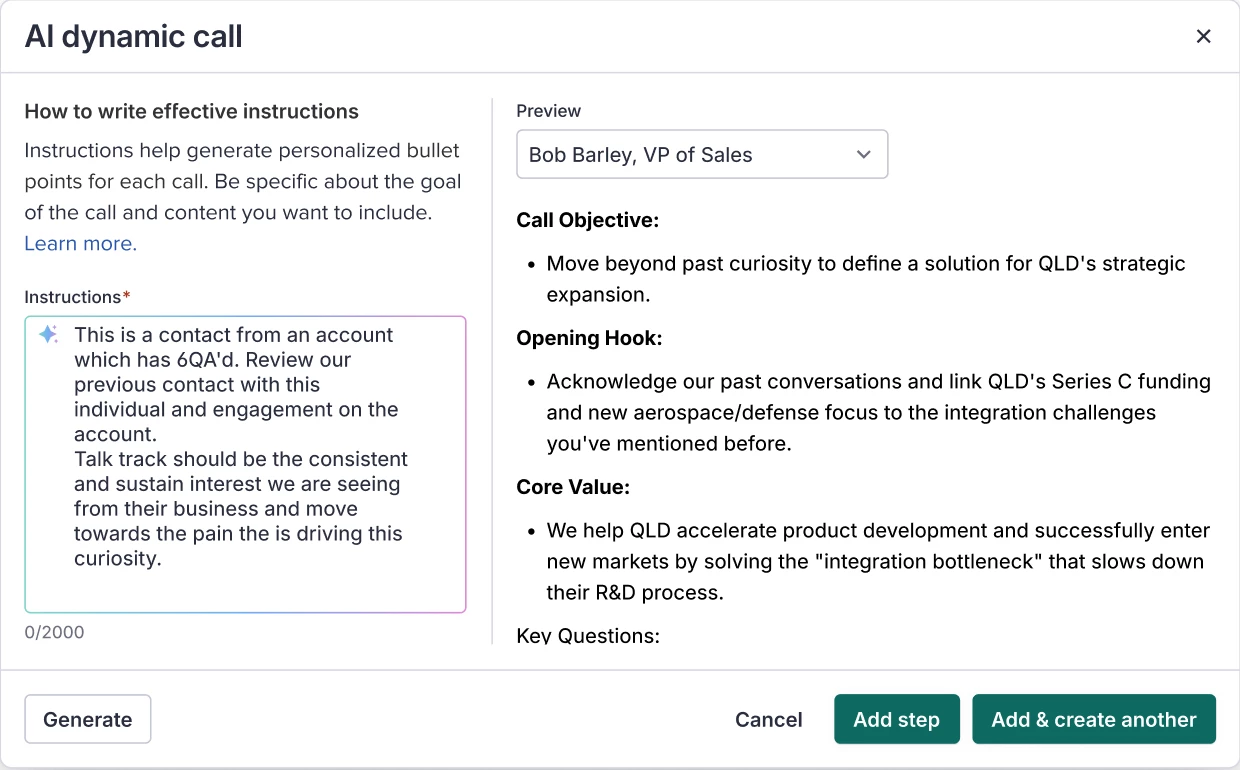
AI Generated Call Scripts
Leverage generative AI inside your Cadence call steps to draft the initial call script with up-to-date buyer context. Reps can efficiently prepare for their calls with minimal manual effort.
Who: AI Generated Call Scripts are available to all Salesloft users. An admin must first enable the "AI dynamic call" step type in team settings.
Where: Located within the Cadence Builder when adding or editing a phone step.
When: This feature will gradually roll out to users over the coming week.
How: While adding a phone step to a Cadence, select AI Dynamic Call and fill out the prompt instructions. Check out the Add a Phone Step article to learn more.
AI Cadences - Cadence purpose & step instructions
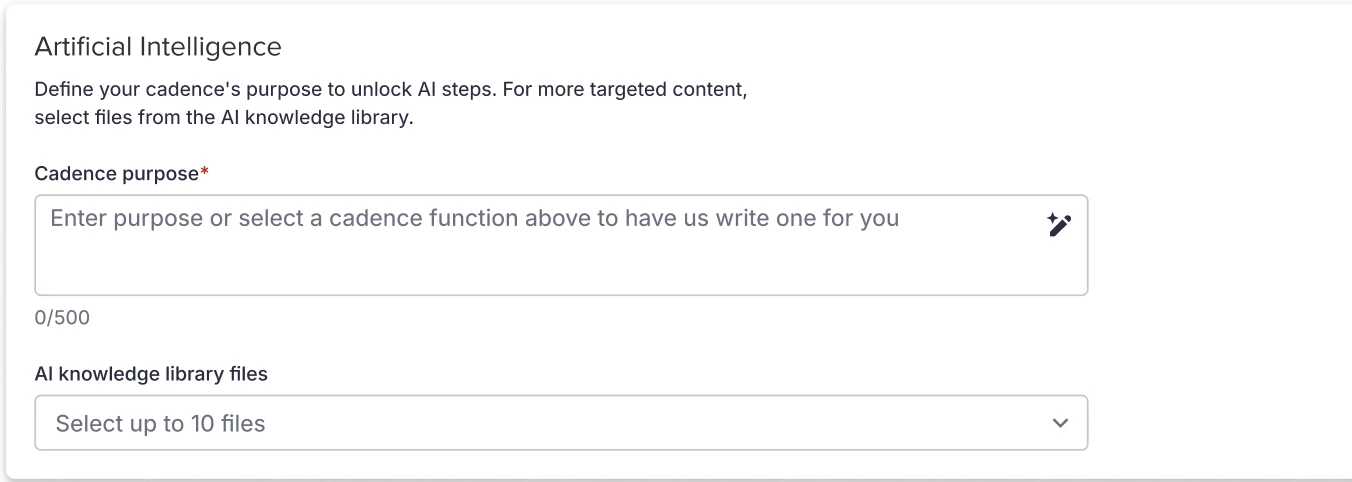
A new button (magic wand icon) located in the AI Cadence Settings screen that allows the user to generate prompts without requiring users to be prompt engineers.
Who: Available to all Salesloft users who have AI features enabled.
Where: Located in the AI section of Cadence Settings, Cadence Purpose field.
When: This feature will gradually roll out to users over the coming week.
How: Navigate to the Artificial Intelligence section of Cadence Settings. Enter your prompt, and click the Help me write pencil icon. Check out the Create a Cadence article to learn more.
AI, Data, & CRM
Shared Saved Views in Analytics
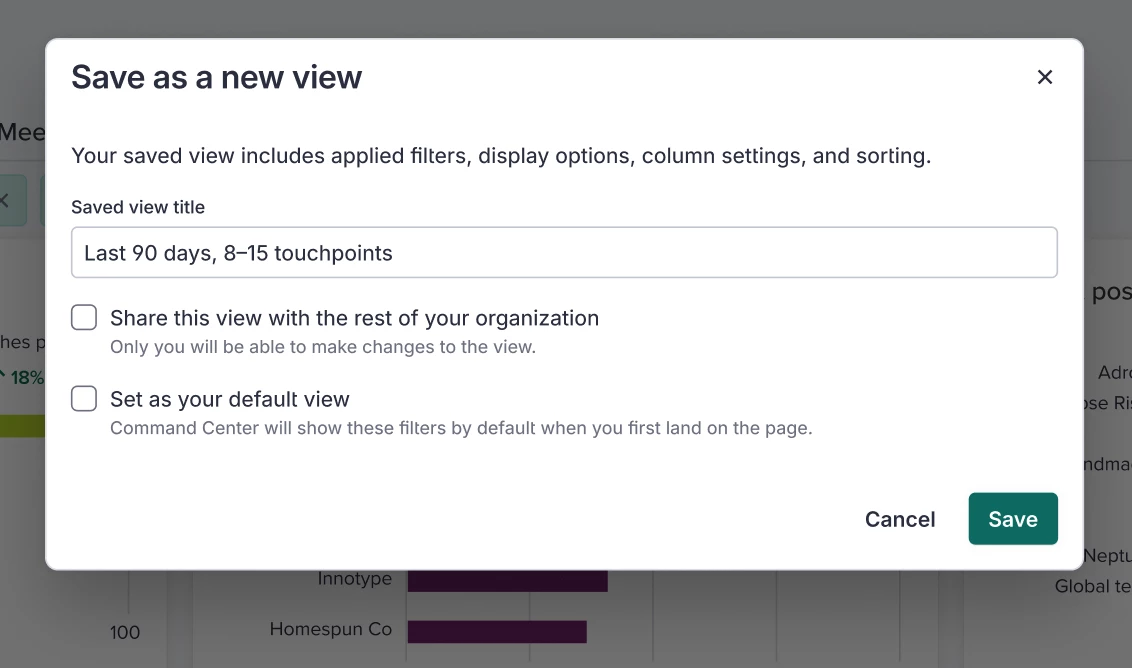
Shared Save Views allows users to create custom, filtered report views that can be shared organization-wide, eliminating the need for manual parameter sharing or static data exports.
Who: Shared Saved Views are available to all Salesloft users.
Where: Shared Saved Views are located within Salesloft Analytics reports.
When: This feature will gradually roll out to users over the coming week.
How: Explore Shared Saved Views by opening a report, applying your desired filters, and selecting Save as a new view. From there, you can toggle the privacy setting to "Shared" to make it visible to your entire team. Check out the Saved Views in Salesloft article for more information.
Channels & Conversations
Conversation Enhancements
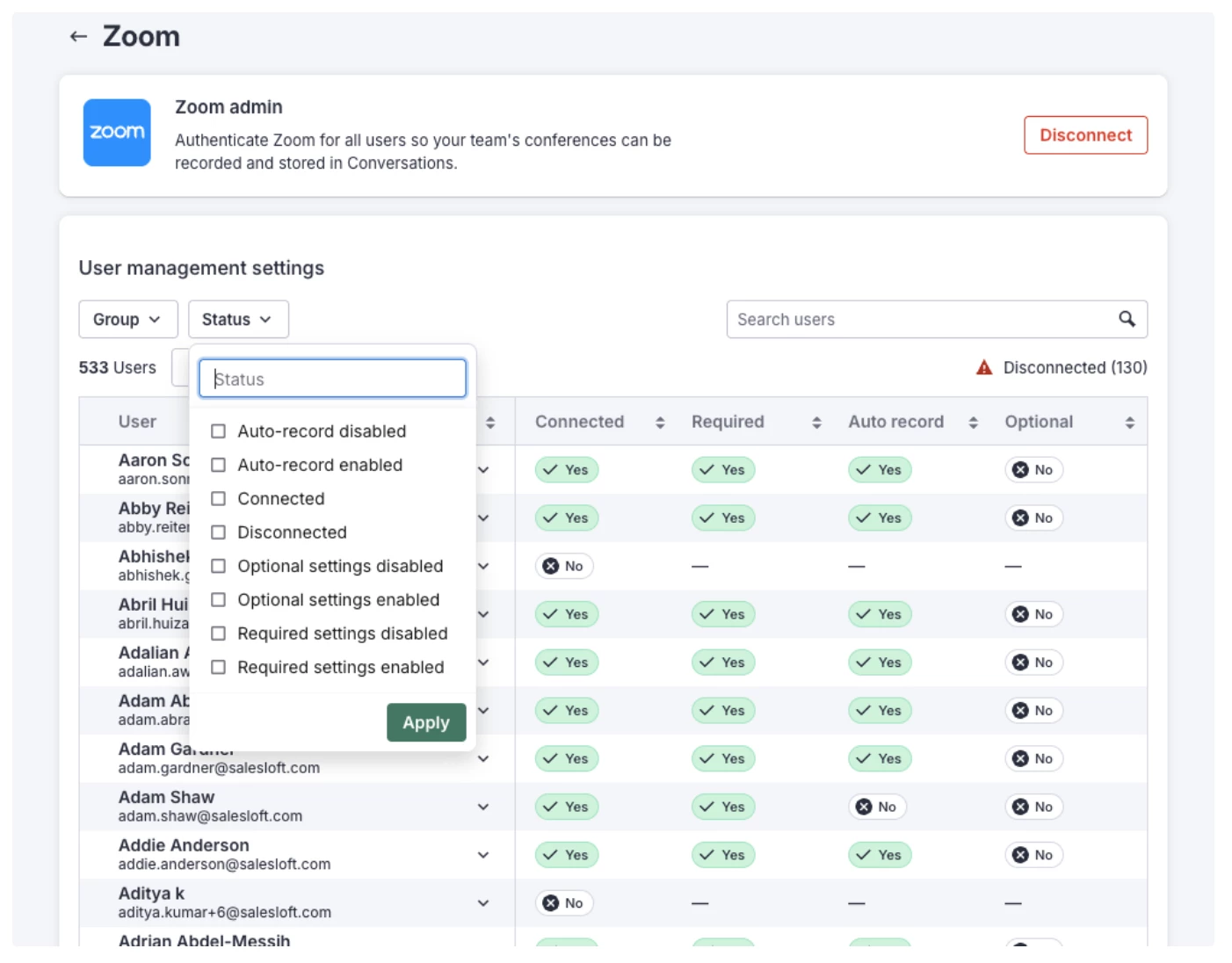
New filters on the User Management table that allow admins to filter by Zoom Connection Status and by Group. This table is available in the admin Conversations settings when an admin configures the Zoom API Integration for their team in bulk. Admins can filter the table to find specific users and perform actions in bulk, such as enabling/disabling Zoom settings.
Who: Available to Salesloft admins who enabled the Zoom API Integration for their team in bulk.
Where: Located in the admin Conversations settings.
When: This feature will gradually roll out to users over the coming week.
How: Navigate to the admin Conversations settings by clicking Settings>Communication>Conversations. Scroll down to the Zoom admin panel. Check out the Manage Zoom API Integration article to learn more.
Book Meeting from Outlook
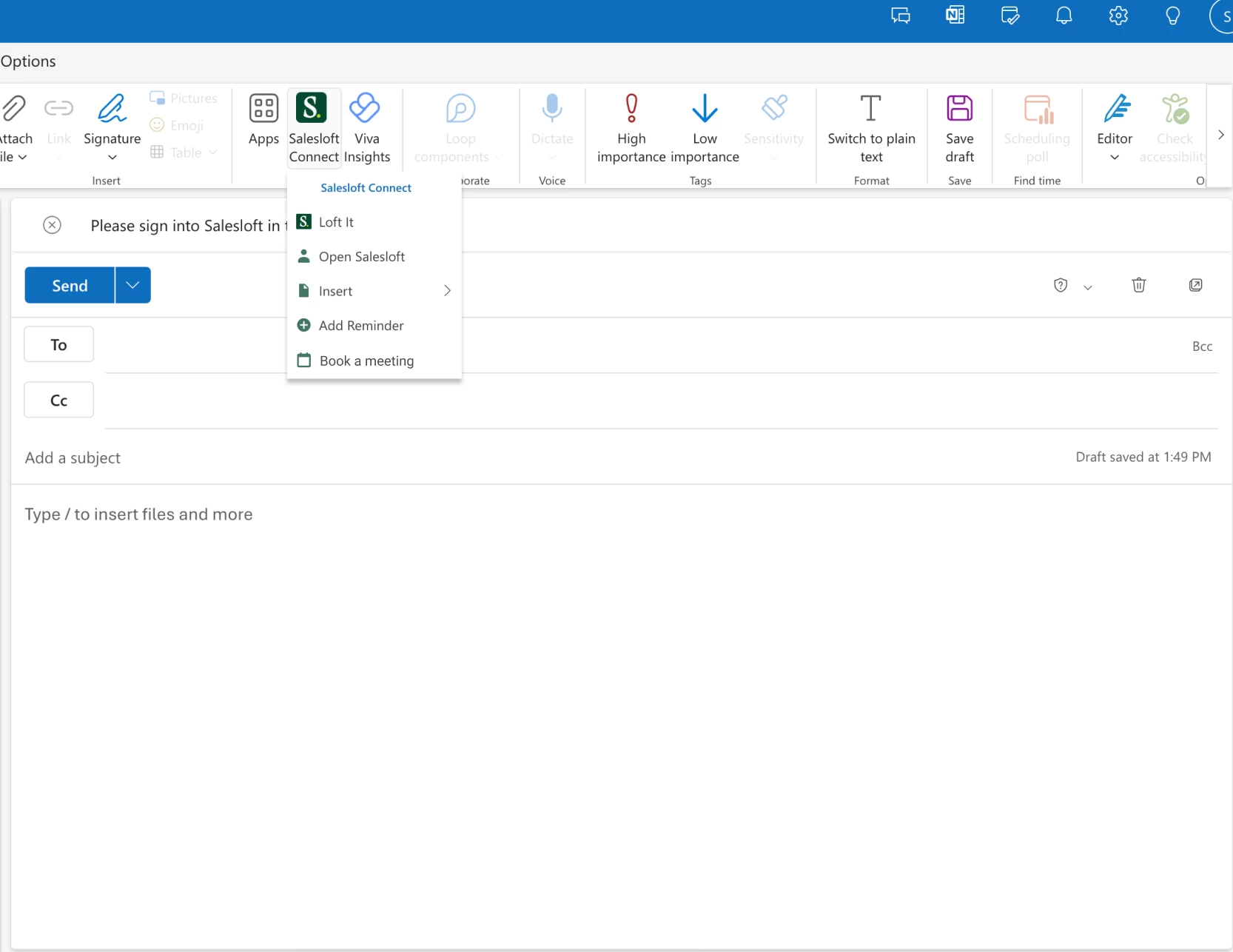
Allows users to book and Loft meetings from the Salesloft Connect add-on in Outlook.
Who: Available to Salesloft users who have the Salesloft Connect add-on in Outlook.
Where: Book Meeting from Outlook is located in the Salesloft Connect sidebar in Outlook.
When: This feature will gradually roll out to users over the coming week.
How: Navigate to Outlook, then compose a new email. Open the Salesloft Connect sidebar, then click the book a meeting icon to schedule a meeting. You will also see the Loft It button. Check out the Book a Meeting in Outlook article to learn more.
Sync Recurring Meetings
A Recurrence dropdown in the meeting scheduler that allows you to book recurring meetings in Salesloft. With this release, all instances of a recurring meeting series, including those created in Salesloft or in a user's connected Google or Microsoft calendar, will now sync to Salesloft. Recurring meetings are labeled in the Activity Feed.
Who: Recurring Meeting is available to all Salesloft users.
Where: Located in Salesloft's meeting scheduler.
When: This feature will gradually roll out to users over the coming week.
How: Navigate to a Person's Profile Page, then click the book meeting icon. Use the meeting scheduler panel to access the recurrence dropdown. Check out the Book a Meeting Through Salesloft article to learn more.

Custom Key Moments
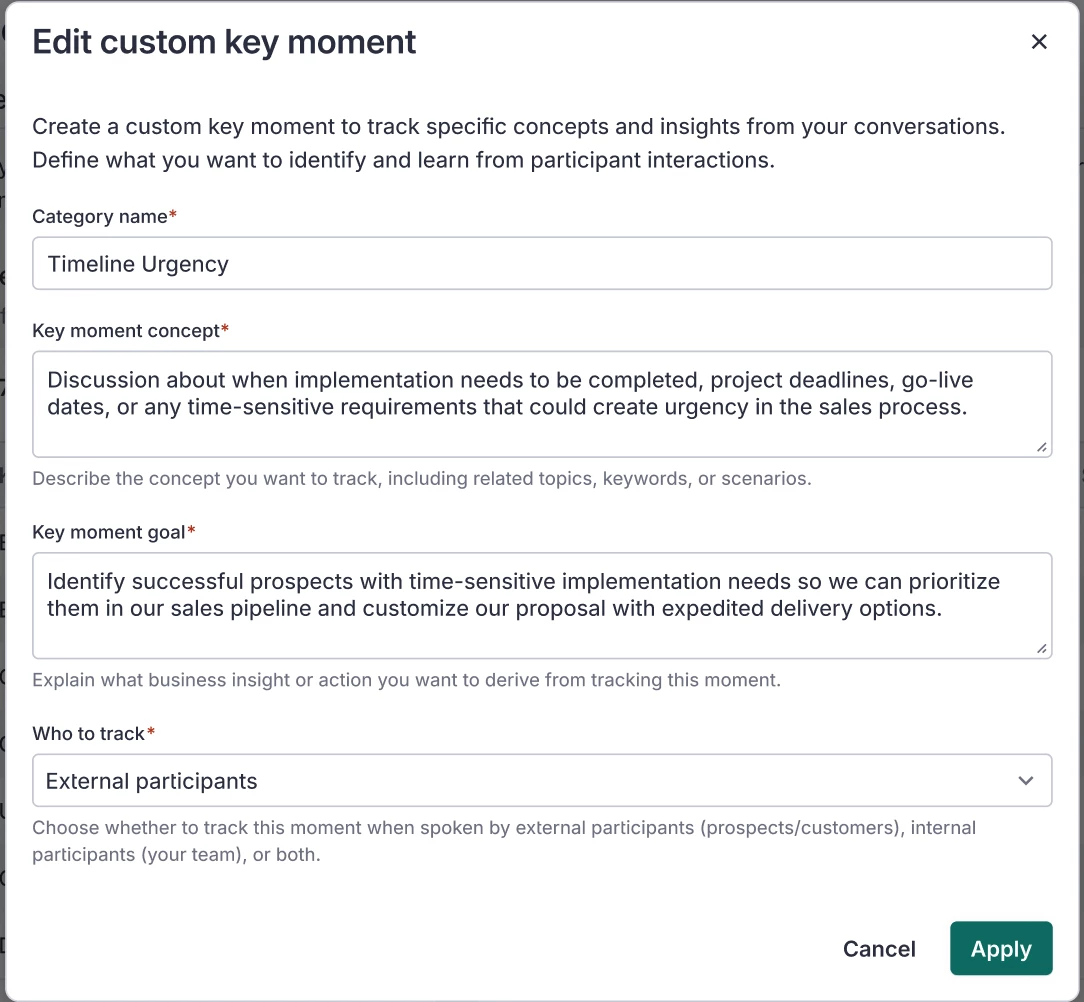
Custom Key Moments allows Salesloft admins to create smart trackers that can analyze calls by topic as opposed to key words.
Who: Custom Key Moments are configured by Salesloft admins and available to Salesloft users once configured.
Where: Custom Key Moment configuration is located in the Key Moments settings. Once created, Custom Key Moments are found within the Conversations platform.
When: This feature will gradually roll out to users over the coming week.
How: Check out the Manage Key Moments article for more information.
Drift
Enhanced Chatbot Settings
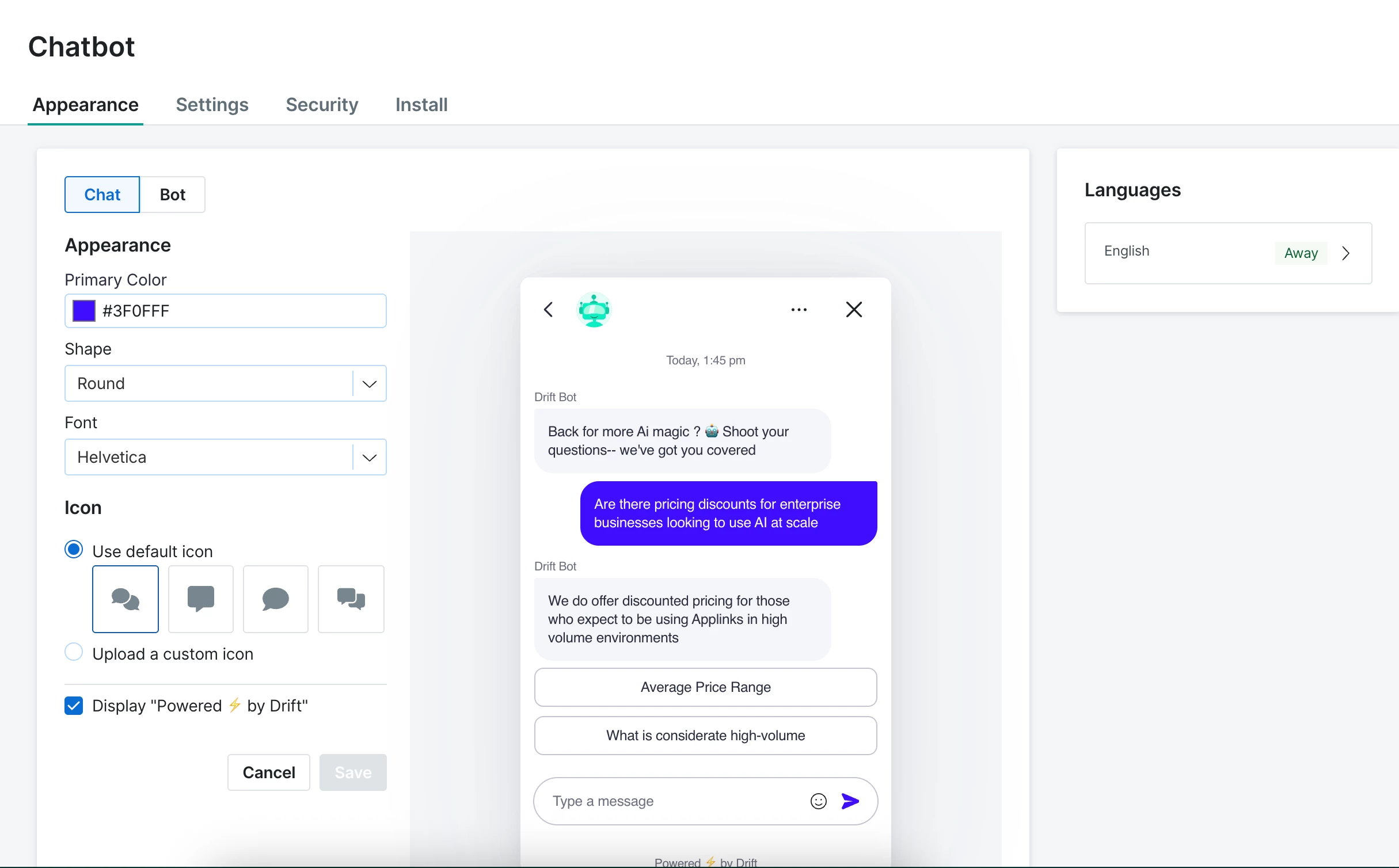
Drift Settings, including Bot, Drift Widget, and Conversation settings are now consolidated under a single Chatbot setting.
Who: Available to all Drift admins.
Where: Enhanced Chatbot Settings can be found in Drift Settings under Chatbot.
When: This feature is generally available.
How: Check out the Drift - Manage Chatbot Settings article to learn more.
Bionic Chatbot Playbook Templates
Engage All and Pricing Playbook templates are now available in the Playbook Marketplace for Drift Users with Bionic Chatbots.
Who: Available to Drift Admins with Bionic Chatbots enabled.
Where: Bionic Chatbot Playbook Templates are located in the Playbook Marketplace.
When: This feature is generally available.
How: Navigate to Playbooks, and select the new Bionic Chatbot templates in the Playbook Marketplace. Check out the Playbook Marketplace article to learn more.
Chatbot Guardrail Customization
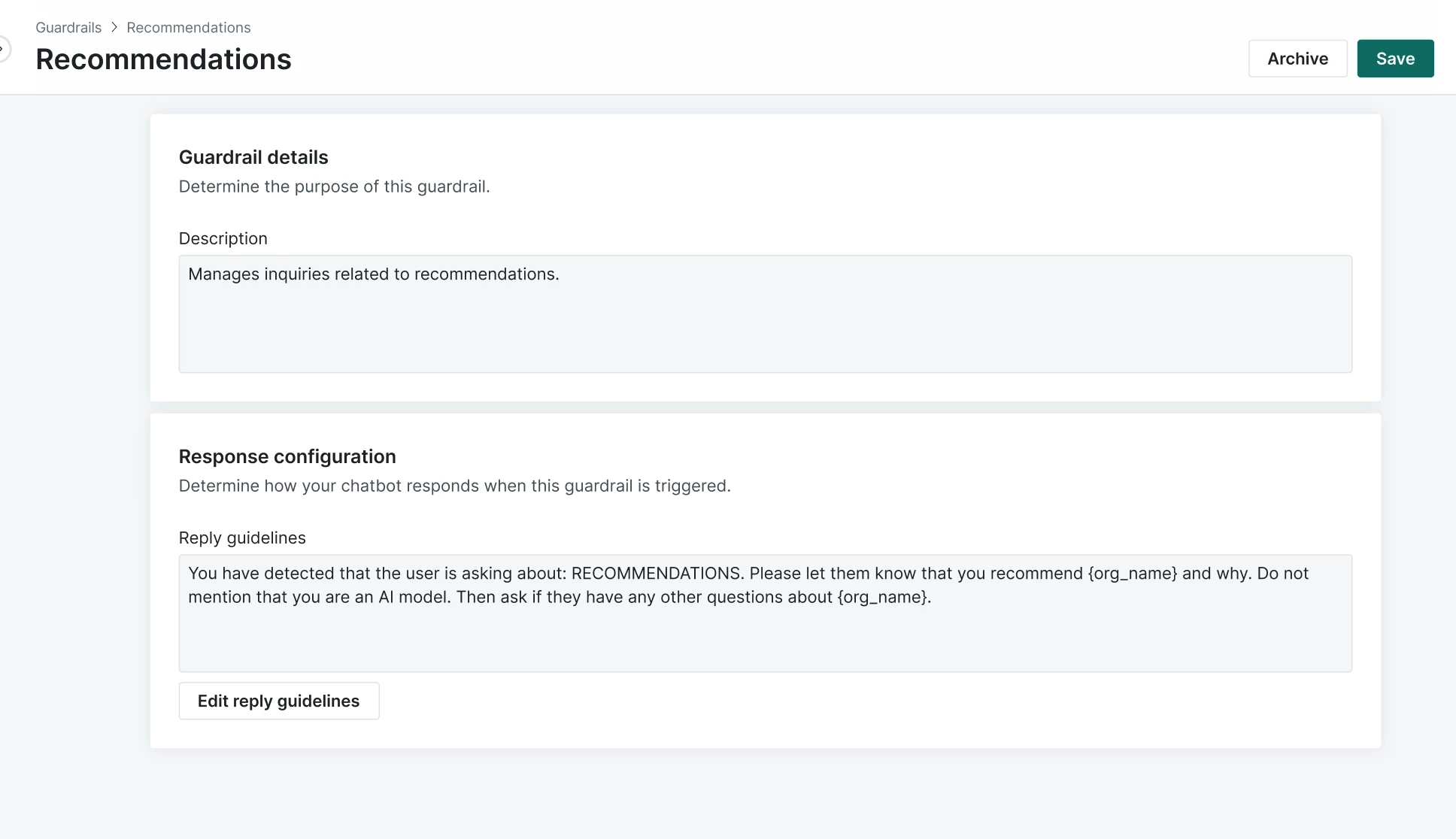
Drift Admins can manage and customize AI chatbot guardrails, ensuring all automated conversations are on-brand, accurate, and aligned with their company's voice.
Who: Drift Admins with Bionic Chatbots enabled.
Where: Located in the Guardrails Library section of Playbooks.
When: This feature is generally available.
How: Navigate to Playbooks, then select Guardrails. Check out the Manage your Conversational Guardrails article to learn more.