


See what's new in Salesloft as we will highlight our newest features and functionality!
Anticipated Release Date: May 12, 2026
New features are releasing in the following product areas:
Please Note: Additional documentation will be made available on the anticipated releases date. Stay tuned for more details.
AI, Data, & CRM
Agent TasksNew AI Data Metrics
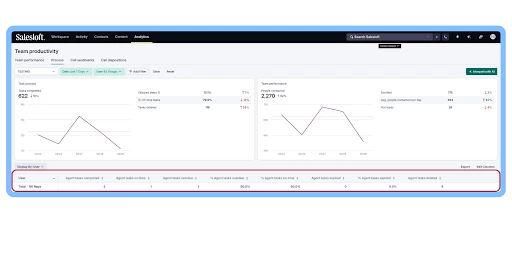
New “Agent Tasks” metrics will be added to the existing reports to better show the value of generative AI and agent usage within Salesloft.
- Who: Available to all Salesloft users.
- Where: AI data metrics can be found in the Account Report and Process Report.
- How: “Agent Task Completed” can be found in the Accounts tab under Prospecting results Analytics; a variety of “Agent Task” metrics are displayed in the Process tab under Team Productivity Analytics. To learn more, check out the Salesloft Metrics Glossary.
AI Email Assistant
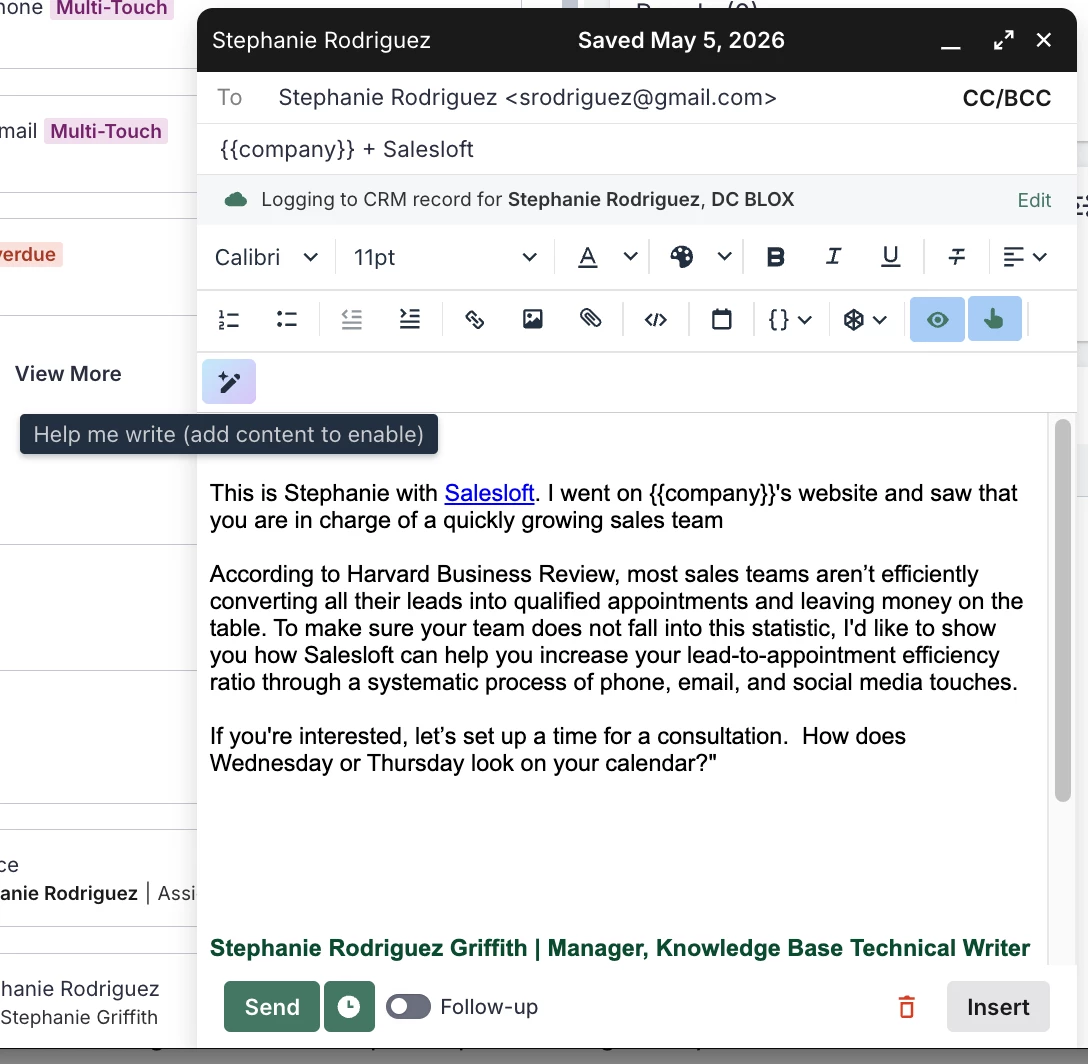
The AI Email Assistant integrates an AI-powered drafting tool into the email compose window. Draft and refine high-quality, personalized emails directly within existing workflows.
- Who: Available to all Salesloft users with the Generative AI feature enabled.
- Where: Can be found as the "AI Email Assistant" button within all email compose windows in the Salesloft web app (one-off emails, Cadence steps, and Play email tasks).
- How: Explore the feature by opening a new email composer and selecting the “Help me Write” AI Email Assistant icon. To learn more, check out the Generate an Email Draft with the AI Assistant and Refine Emails Using the AI Assistant articles.
Channels & Conversations
Custom Key Moments Analytics
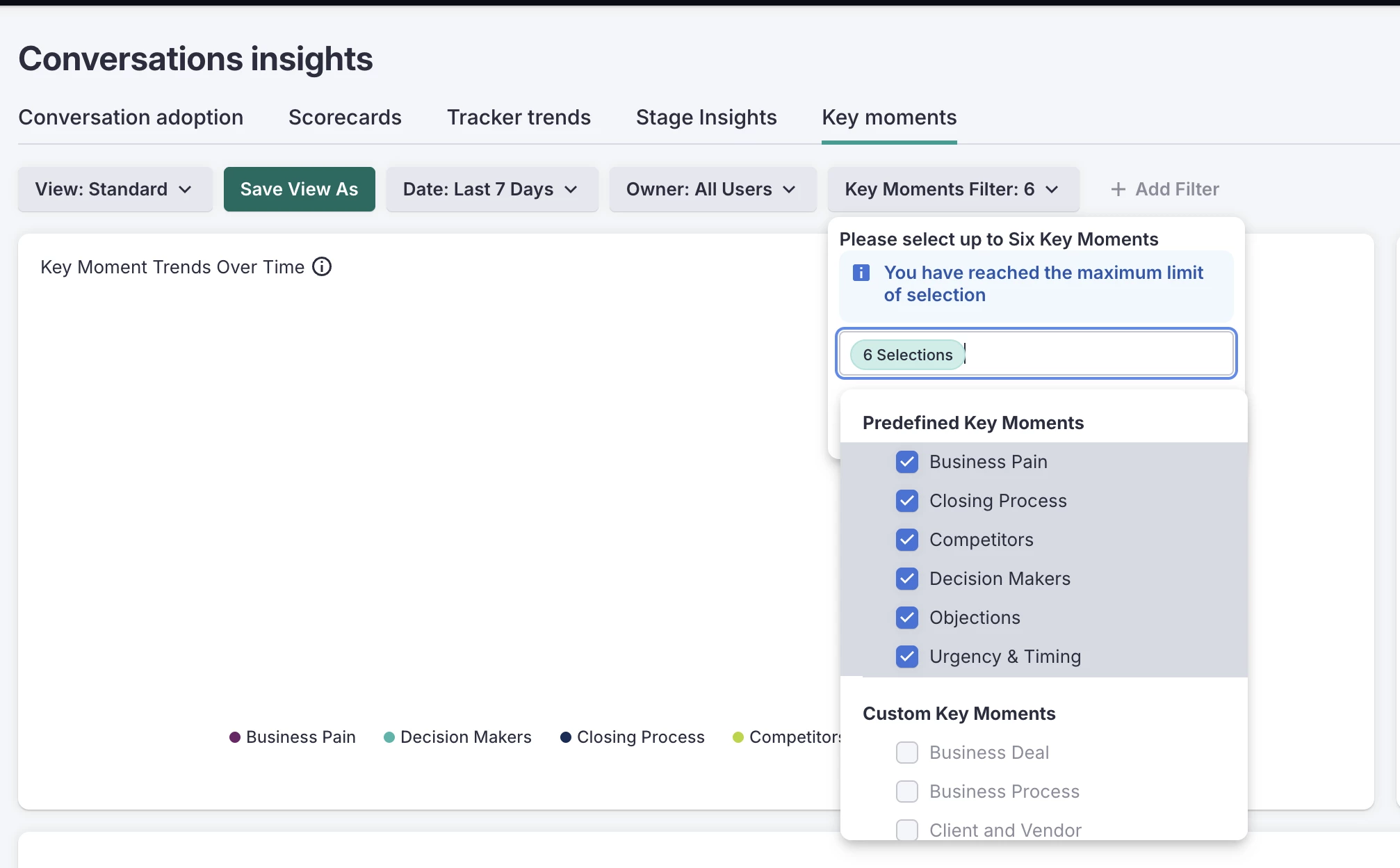
Key Moments Analytics now allows users to filter Conversations Analytics using custom key moments. The update includes a filter to compare up to six moments, a trend graph that visualizes "Total Mentions" rather than simple call counts, and an interactive legend for a decluttered view. In addition, this update provides full retroactive data back to each moment's original creation date.
- Who: Available to Salesloft users with access to Conversation Analytics. Custom Key Moments in analytics must already be created in Admin Conversations Settings inside the Key Moments tab.
- Where: Located under Analytics within Conversations Insights under the Key Moments tab.
- How: From the Conversations Insights Analytics, go to the Key Moments tab. Use the Key Moments Filter to select their specific "Custom Trackers." The graph will immediately update to show the frequency of those mentions across the selected timeframe and team. See the Key Moments Analytics article to learn more.
CRM Sync for Conversations: AI Summary Write Back
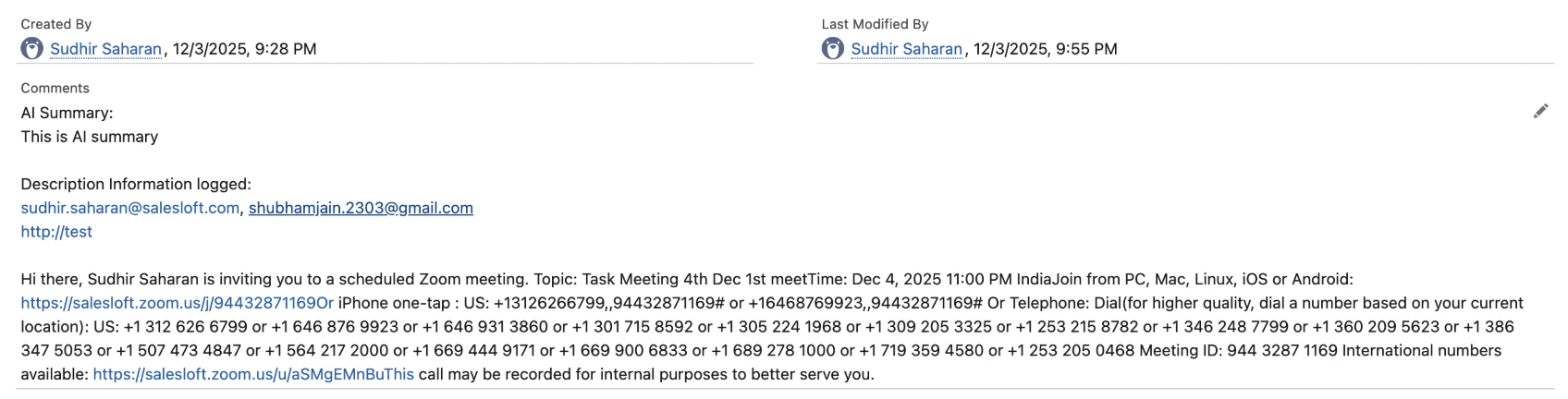
Salesloft automatically enriches CRM activity records by writing AI-generated summaries, attendee lists, and recording links directly into the record's comments.
- Who: Available to Salesloft users with the Generative AI feature enabled. Admins a team admin must set your Meeting and Call activty logging settings in the CRM Sync settings and that the Salesloft "Notes/Comments" field is mapped to the corresponding CRM activity field
- Where: Conversation summaries, attendees, and recording links will populate in the CRM's mapped field, typically the "Comments" or "Description" fields.
- How: Once a Conversation ends and Salesloft AI processes the recording, the system identifies the matching Task or Event in the CRM. It then updates that record's "Comments" field to include the AI Summary, participant list, recording link, and user notes. To learn more, check out the Conversation Summary article.
Seller Out of Office Automation
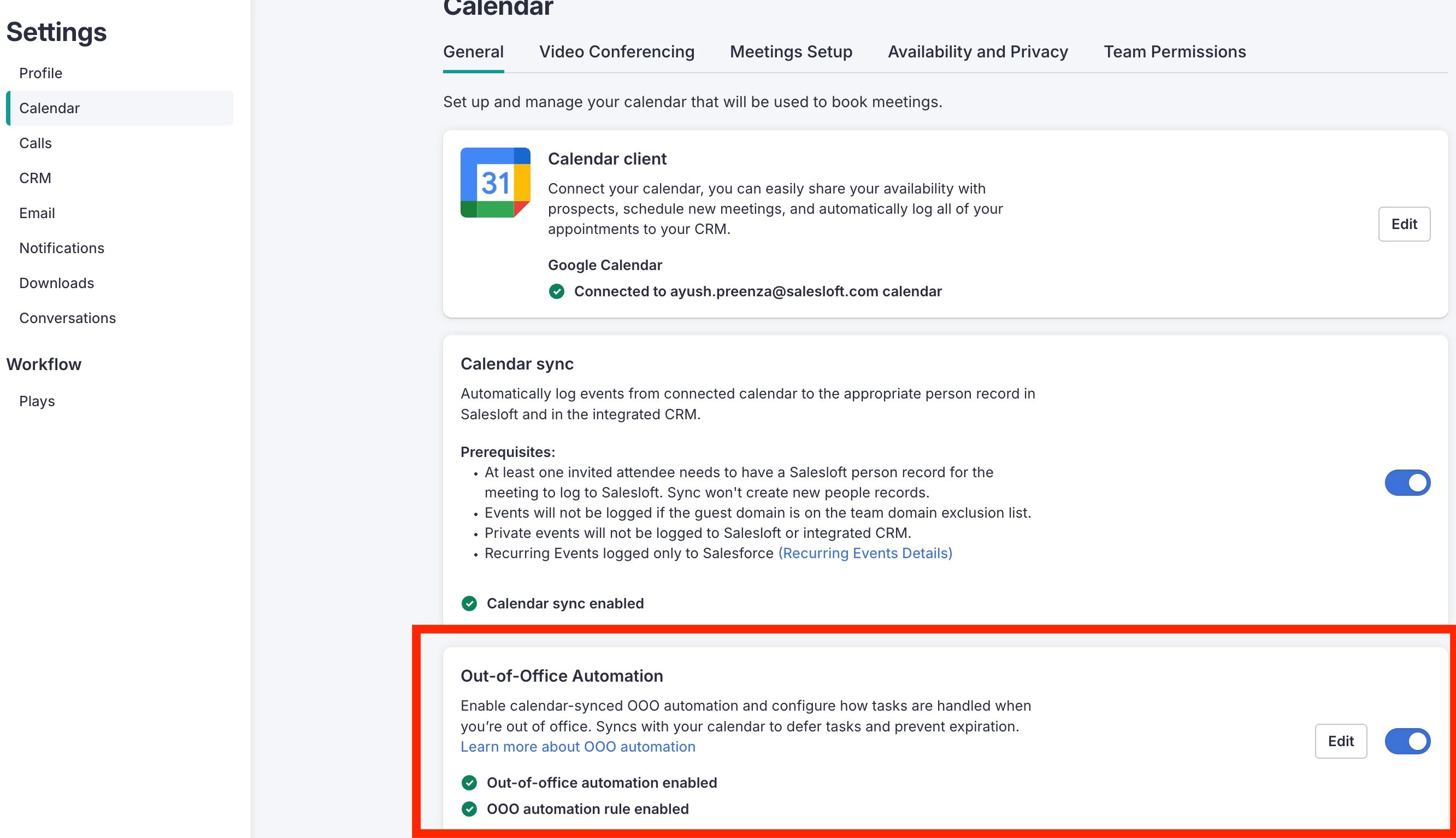
Automatically manages seller availability by detecting "Out of Office" events from connected calendars and rescheduling Cadence tasks to maintain momentum.
- Who: Available to users with Calendar Sync active and the Seller OOO Automation toggle enabled in their user profile.
- Where: This setting is managed within Admin Meeting Settings and then enabled by users from their respective Calendar Settings. When active, a yellow "OOO Enabled" status banner will be visible at the top of the platform.
- How: A team admin may need to enable the Seller Out of Office Automation setting for your team from the Meetings Settings. Then, each user can enable the Seller Out Of Office Automation toggle in your user Calendar Settings, then set an OOO event on your external calendar.
Send Email to Multiple "To" Contacts
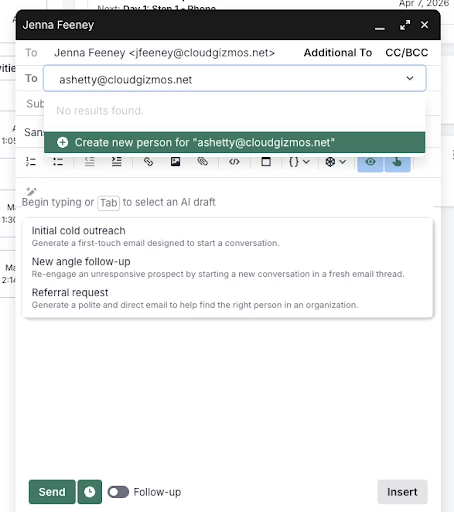
Allows the addition of multiple recipients in the “To” field of emails within Salesloft. Users can search for existing records or create new ones for unrecognized addresses.
- Who: Available to all Salesloft users.
- Where: Located within the Email Compose Window across the Salesloft web platform.
- How: Open the email composer and type additional email addresses into the "To" field. See the Send Emails from Salesloft article for more information
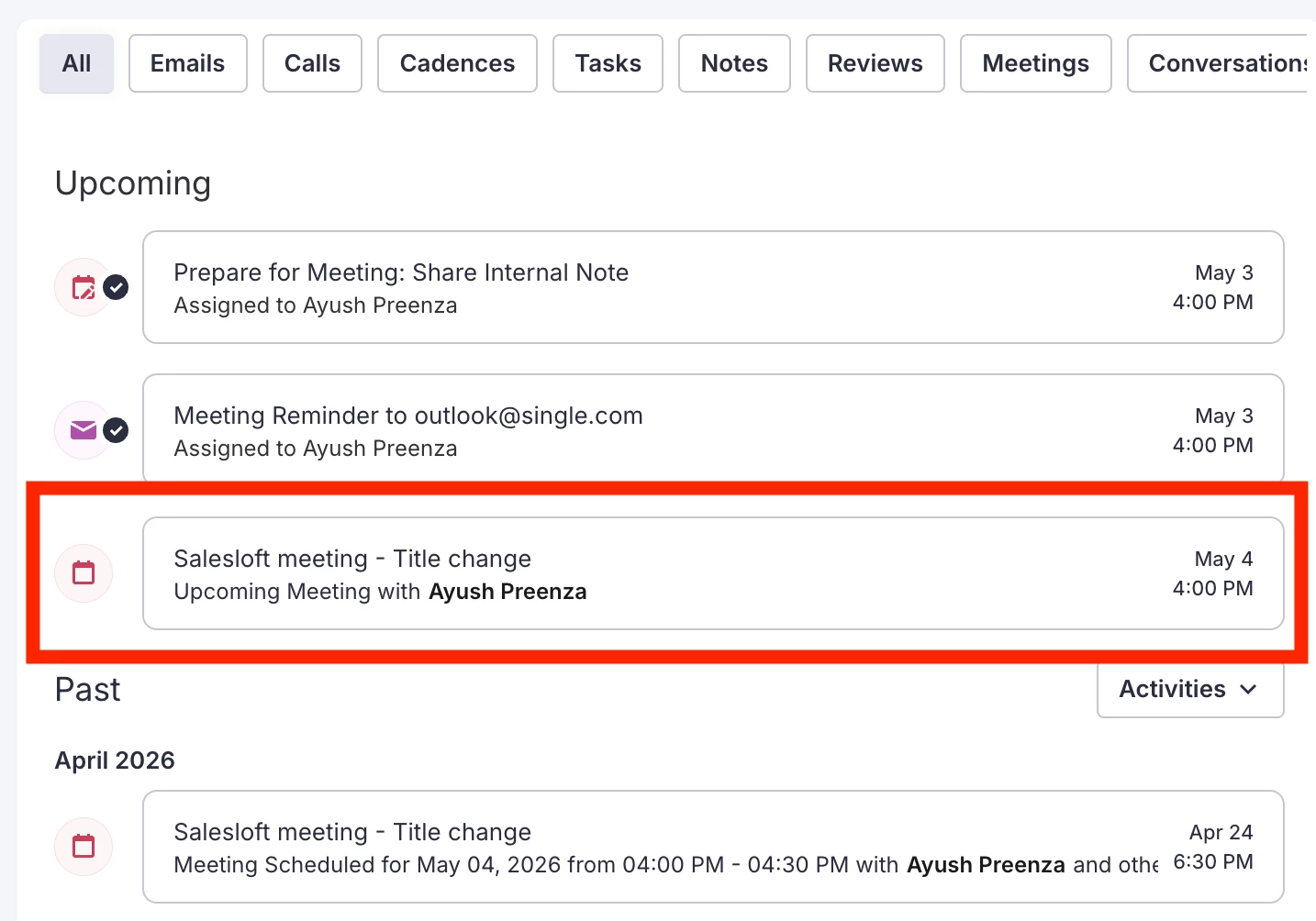
Update Meeting Events for Outlook
Single Event Sync for Outlook ensures your calendar remains a single source of truth by automatically syncing updates to meeting details from Outlook to Salesloft.
- Who: Available to all Salesloft users with the Outlook Connect add-in and Calendar Sync enabled.
- Where: Located within the Salesloft Connect side panel in Outlook and reflected on all Salesloft activity pages and reports.
- How: Ensure the Lofting enabled toggle is active in the Salesloft Connect side panel and click Send after modifying an event. Learn more in the Book a Meeting in Outlook article.
Workflow, Rhythm, & Cadence
View-Only Plays
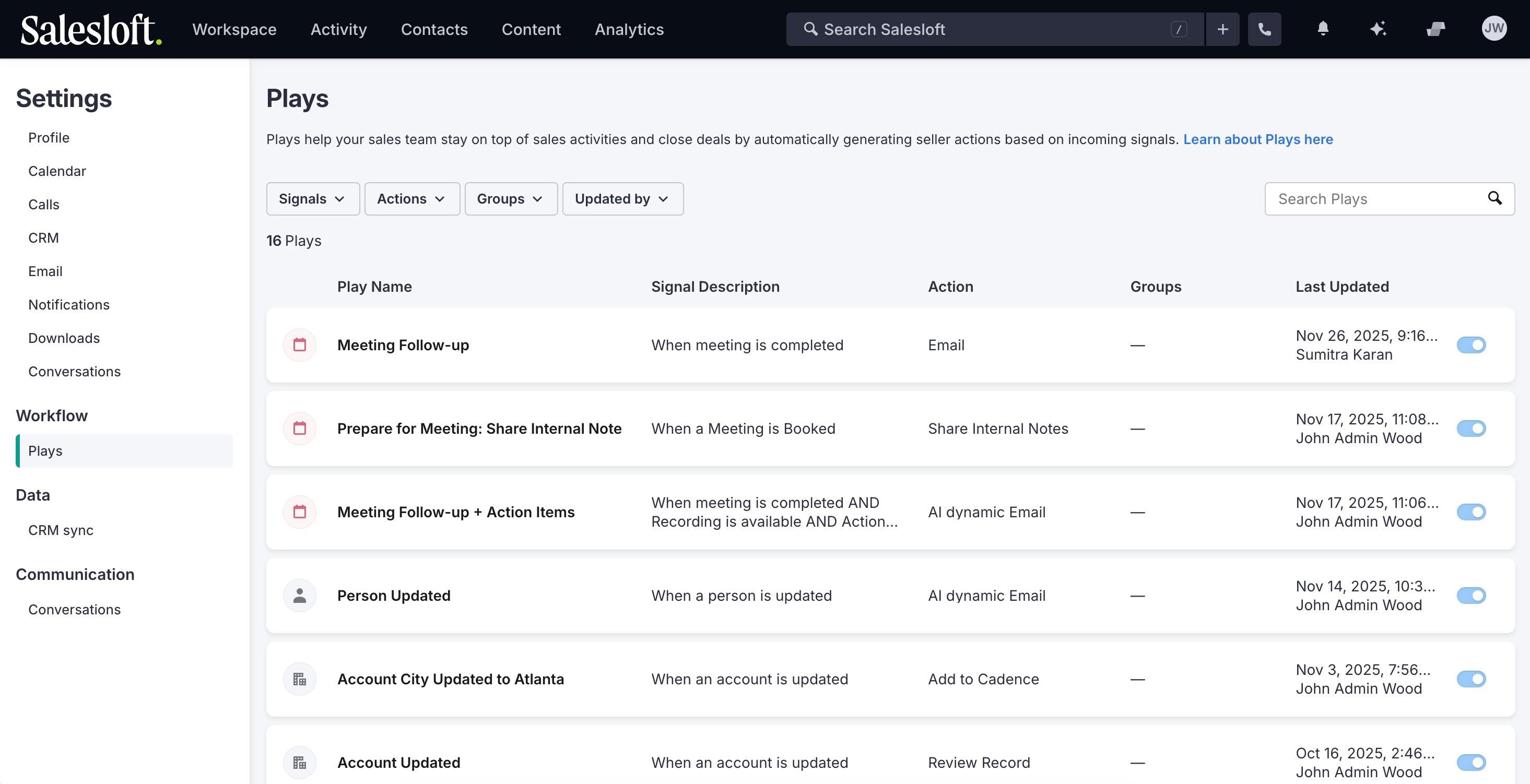
A page inside the Salesloft Settings that shows all of the Plays enabled for your role. Non-admins can click into a play to see the Signal, Filter logic, and Action settings in a disabled, "view-only" state.
- Who: Available to all Salesloft users.
- Where: To view Plays, go to Settings and select Plays under Workflow.
- How: In your Settings, go to Plays, and click into each play to see further details. To learn more, check out the View Plays in Salesloft article.