



See what's new in Salesloft!
Anticipated Release Date: June 9, 2026
In this article, we will highlight Salesloft's newest features and functionality. New features are releasing in the following product areas:
AI, Data, & CRM
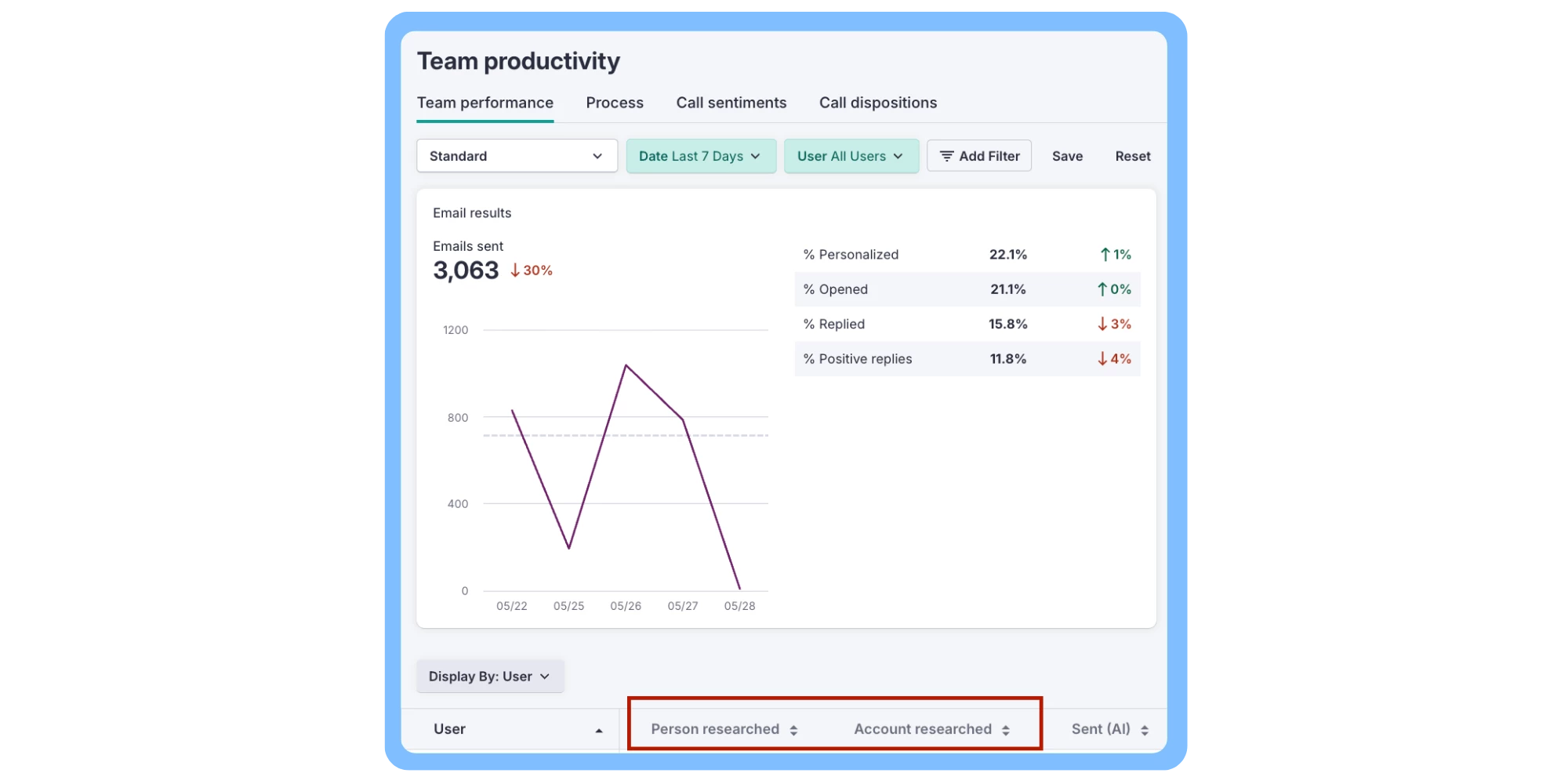
Analytics Reports: People and Account Research AI Metrics
Three new AI metrics are now available in Salesloft Analytics, giving you visibility into how your team is using AI-assisted research. You can now track Account researched, Person researched, and Agent tasks completed across key reports to better understand AI adoption and its impact on team activity.
Who: Available to users with access to Salesloft Analytics reports. No additional permissions required beyond existing report access.
Where: Inside Salesloft Analytics in the Accounts Report and Team Performance Report, as well as the Individual Coaching Report found in Coaching. The Agent tasks completed metric appears in the Individual Coaching Report only.
How: To learn more, see the Salesloft Metrics Glossary.
Connect Salesloft to Claude via the MCP Connectors Directory
You can now connect Salesloft directly to Claude through the MCP Connectors Directory, letting you work with your Salesloft data from within the Claude desktop app.
Who: Available to Salesloft Users with the Salesloft Agentic add-on and access to the Claude desktop app.
Where: Claude desktop app — Connectors Directory.
How: Connect Salesloft to Claude in the Connectors Directory. Check out the Set Up the Salesloft MCP Server + Claude article to learn more.
Workflow, Rhythm, & Cadence
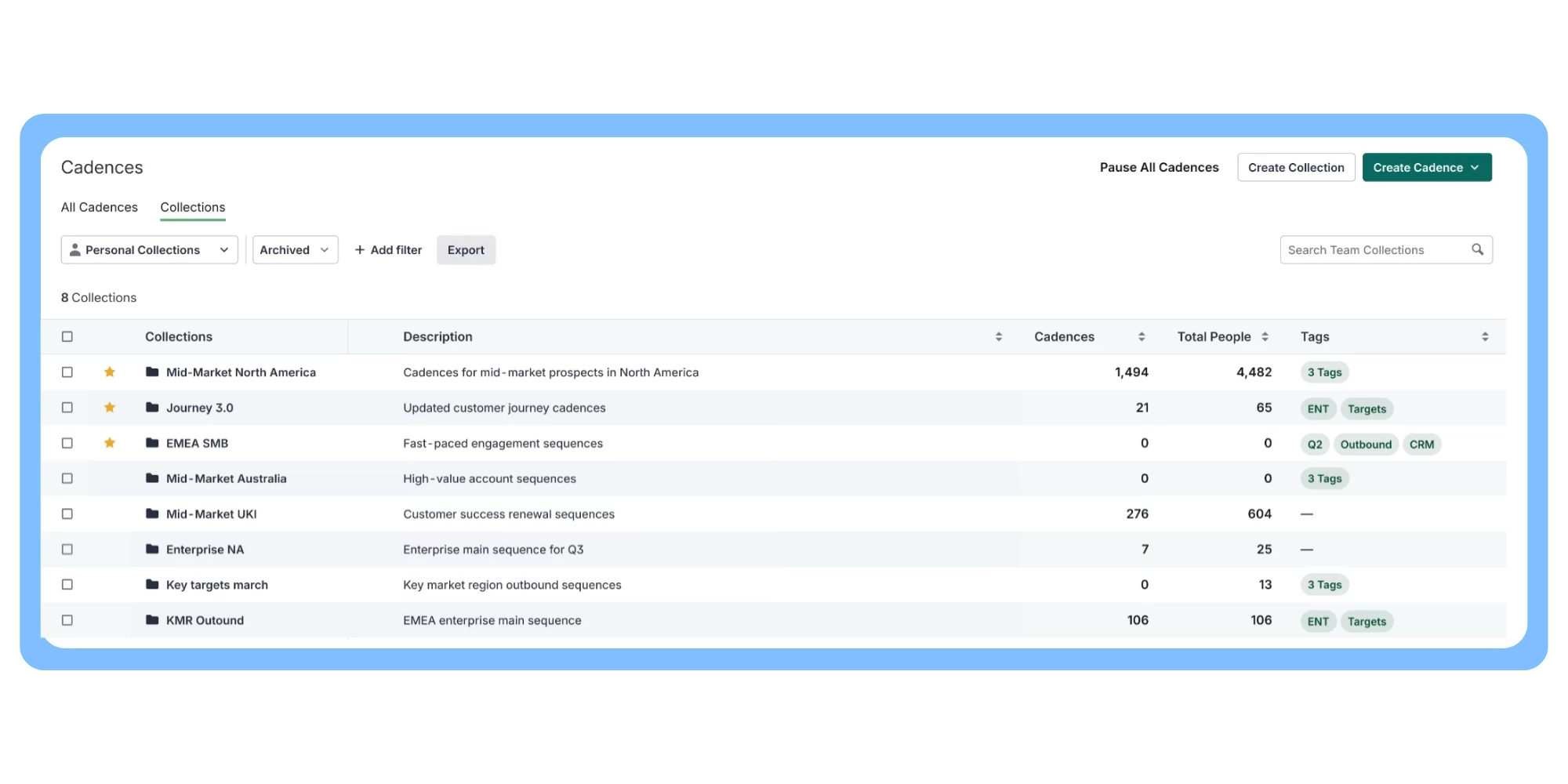
Cadence Collections
Cadence Collections introduces a new organizational layer for grouping related cadences into a single container, so admins can manage settings, permissions, and CRM sync rules across multiple cadences at once.
When a Collection is created, any cadence added to it inherits the parent-level configuration. A visual indicator within the cadence settings makes it clear when a setting is being controlled at the Collection level.
Who: Primarily available to Salesloft admins managing multiple active cadences. Users will also see "Verified Master" labels on cadences to help identify the correct company plays.
Where: Cadences list view — a new Collections tab will appear for eligible workspaces. Collection settings are managed within the Collections configuration panel.
How: To create a Collection, navigate to the Cadences list view and select the Collections tab. Create a new Collection, define your master settings for sync, throttling, and permissions, then add cadences to the Collection using bulk-select. Existing standalone cadences are not automatically migrated — they must be manually moved into a Collection.
To learn more, see Create a Cadence Collection in Salesloft.
Salesloft Connect
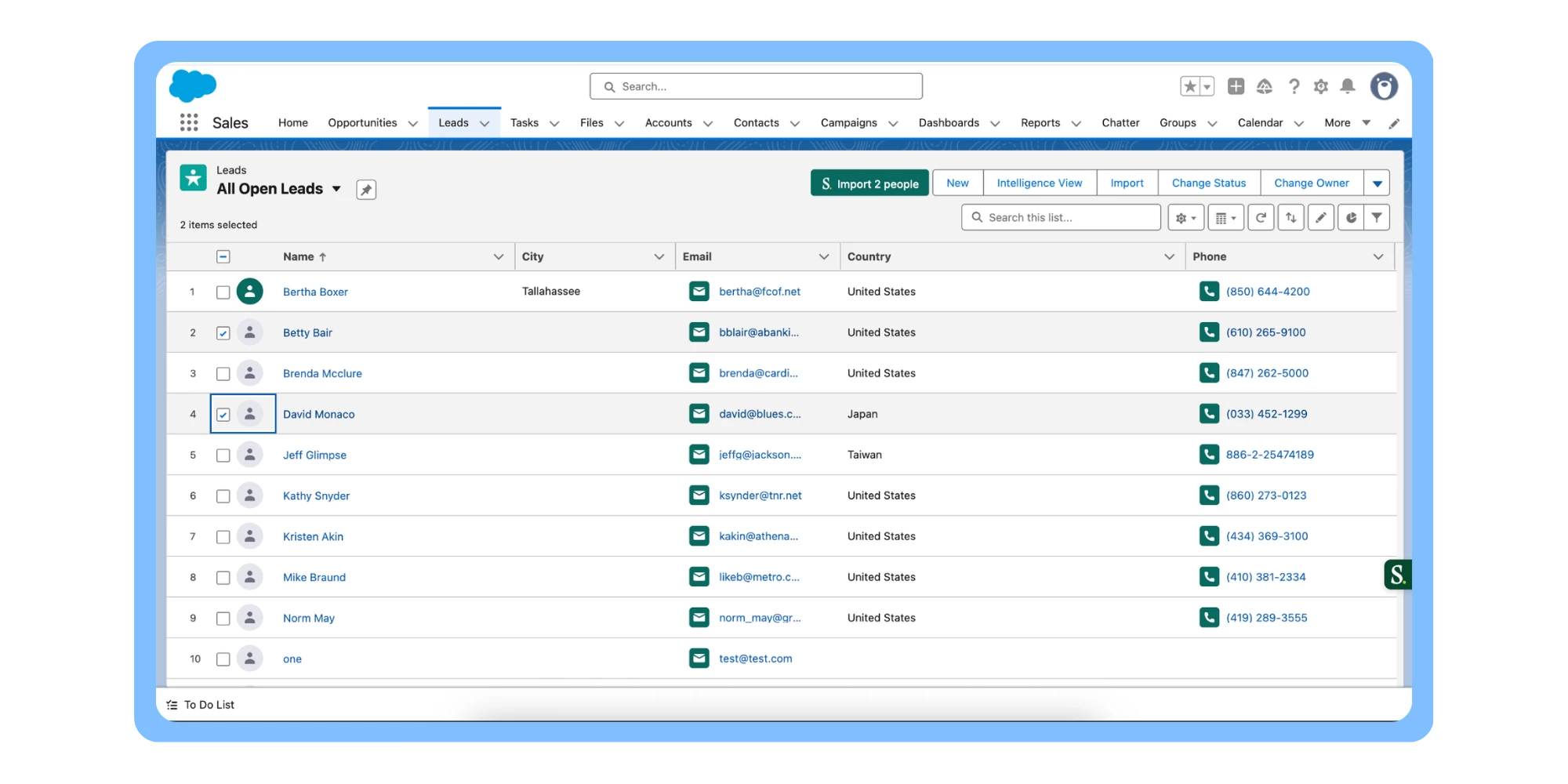
Multi-Select Import from Salesforce List View
You can now hand-pick specific contacts, leads, or accounts from a Salesforce List View to import into Salesloft, rather than importing an entire view at once. The import button updates in real time to reflect how many records you've selected — for example, "Import 5 people" — so you always know exactly what will be brought in.
Who: Available to Salesloft users with a Salesforce integration and the Salesloft Connect Chrome Extension installed.
Note: Teams who previously created the Custom View Import button in Salesforce will not have access to the Multi-Select import until they have removed the custom import button.
Where: Salesforce Lightning List Views (Contacts, Leads, or Accounts), via the Salesloft Connect Chrome Extension.
How: To use multi-select import, navigate to any Salesforce Lightning List View, check the boxes next to the records you want to import, and click the import button. Note that if you use "Select All" on a long list, you'll need to scroll to the bottom of the list first to ensure all records are fully loaded before importing.
To learn more, see Imports from Salesforce - Method 4.
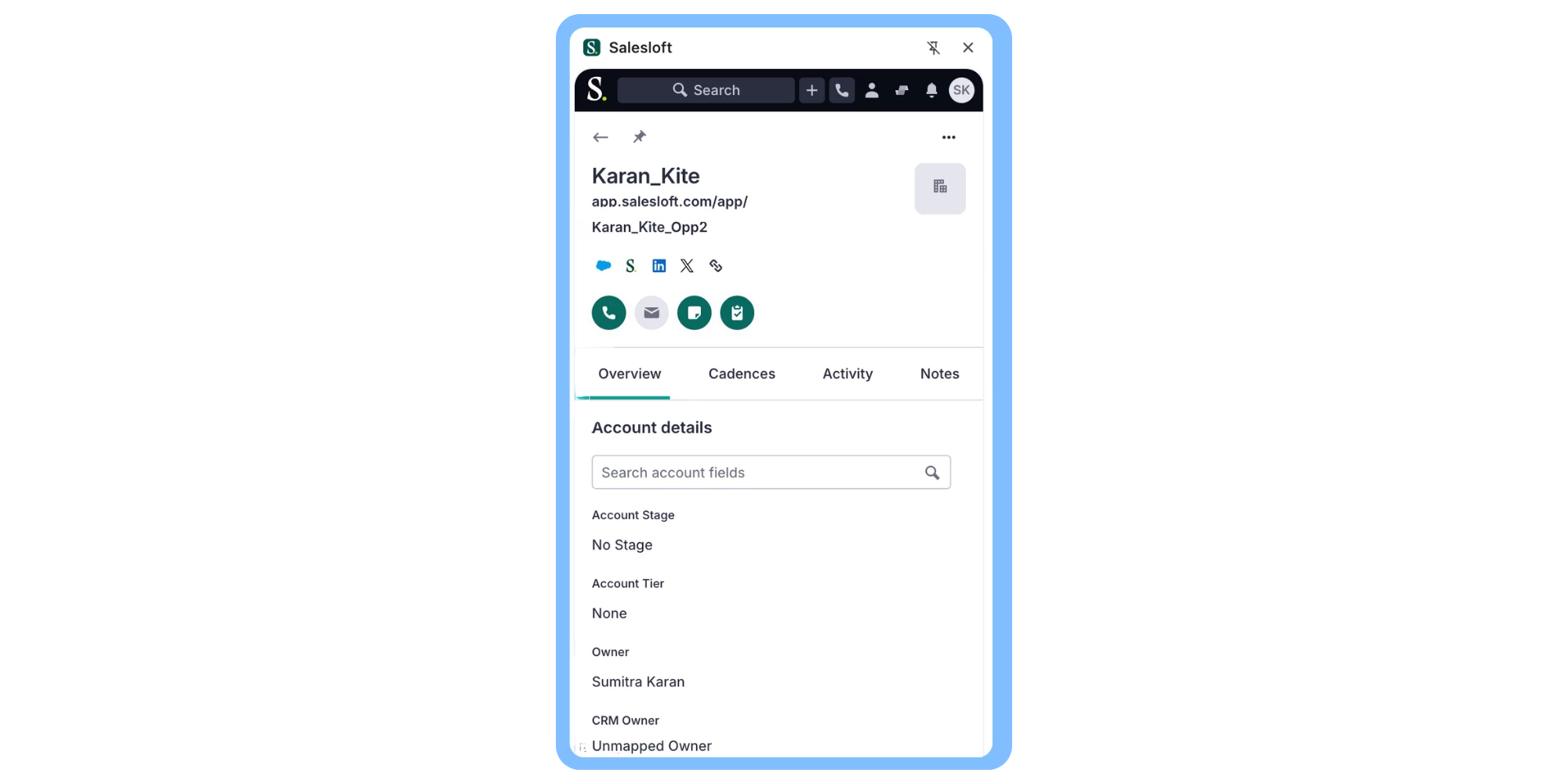
Salesloft Connect Extension: Person View Redesign & Opportunity Linking
The Salesloft Connect extension's person view has been redesigned with a new Overview tab that replaces the legacy Contact tab. The Overview tab displays key person details alongside a direct link to the nearest open opportunity associated with that person, so you can quickly review deal context without leaving your email or CRM.
Who: Available to all users with access to the Salesloft Chrome extension. Deal information is only available for teams that use Salesloft Deals. No additional permissions or configuration are required.
Where: Salesloft Connect Extension sidepanel, on any Person record.
How: Open the Salesloft Connect Extension side panel inside your Chrome browser. When viewing Deal information, the nearest open opportunity link appears automatically when a qualifying opportunity exists — meaning the opportunity's stage is not Closed Won or Closed Lost, and its close date is today or in the future.
To learn more, see Salesloft Chrome Extension: Side Panel UI.
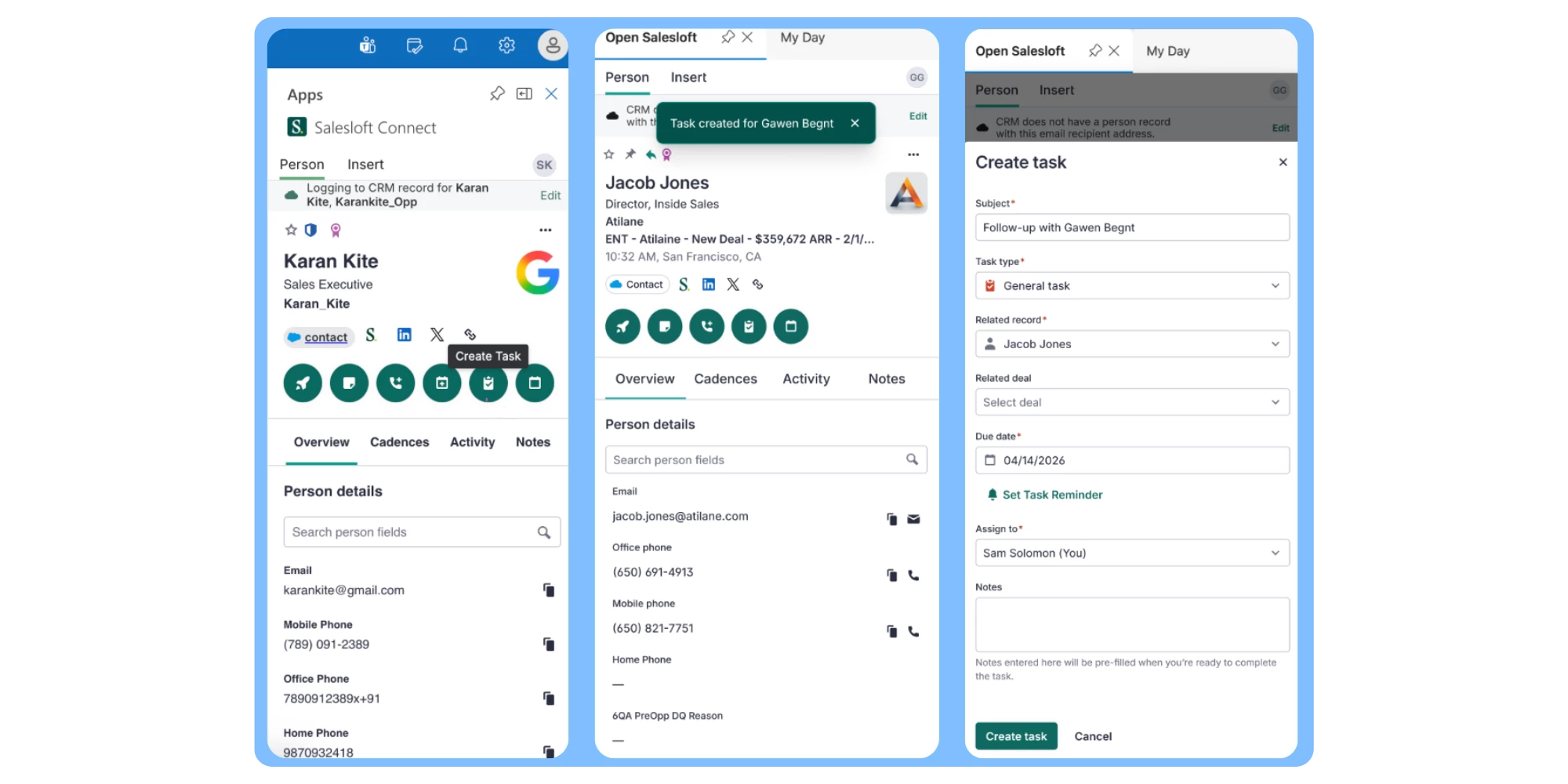
Create Tasks from Outlook (Person View)
You can now create and save follow-up tasks directly from a person's record in the Salesloft Connect panel inside Outlook. When you open the task composer, the related person field is automatically filled in based on the contact you're viewing, so you can log next steps without leaving your inbox.
Who: Available to all users with existing task creation permissions in Salesloft. Requires the Salesloft Connect Add in for Outlook.
Where: Salesloft panel in Outlook — Person record view, Quick Actions.
How: No setup required. The feature is enabled by default. To create a task, open the Salesloft panel in Outlook, navigate to a person's record, and click the **Create Task** icon in the Quick Actions area. Fill in the task details (subject, type, due date, assignee, and notes) and save. If your Salesloft account is connected to a CRM with task sync enabled, the task will also write back to your CRM automatically.
To learn more, see Create a Task in Salesloft.
Channels & Conversations
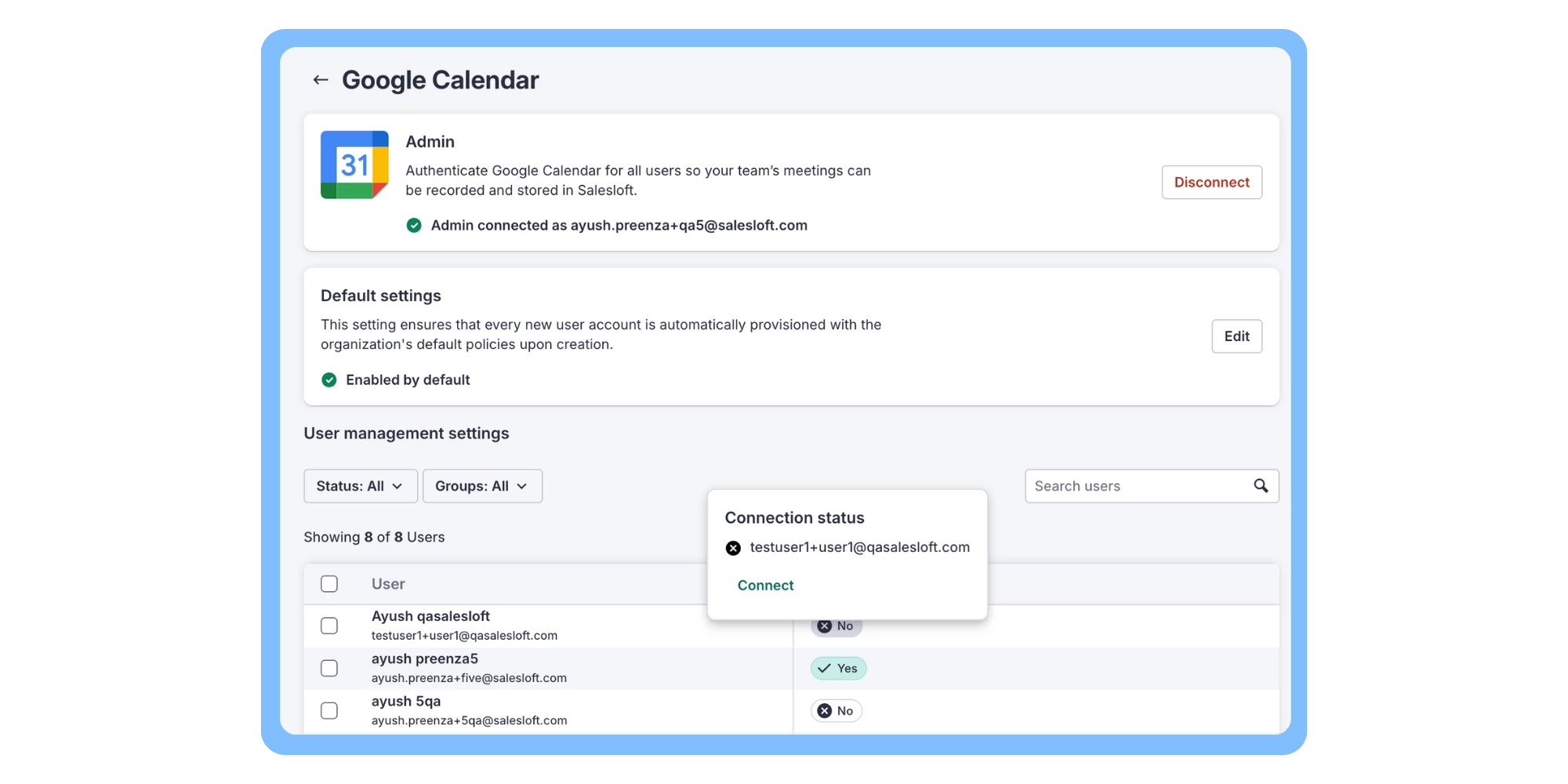
Domain-Level Calendar Authentication for Google Calendar
Administrators can now centrally connect Google Calendar for their entire organization in a single setup, automatically integrating all existing and new users with Salesloft without requiring individual connections. Users can still disconnect or reconnect their own calendar at any time through their personal settings, and administrators can selectively disconnect or reconnect individual users as needed.
Who: Salesloft administrators with access to Admin Settings. Requires the Standalone Calendar setting to be enabled. Once configured, the integration applies automatically to all users on the domain.
Where: Admin Settings > Calendar Integration. Individual users can view and manage their connection status under their personal calendar settings, where the connection source (user-level or domain-level) is clearly labeled.
How: To get started, navigate to Admin Settings, select the Calendar Integration option, choose Domain-Level Authentication for Google Calendar, and follow the OAuth steps to link your organization's Google Calendar domain to Salesloft.
Note that if the Standalone Calendar setting is not enabled, the Domain-Level Authentication option will appear grayed out — contact your Salesloft CSM to enable it.
To learn more, see Manage Domain Level Access in Salesloft.
Activity Feed: Enhanced Date Filtering and Meeting Tracking
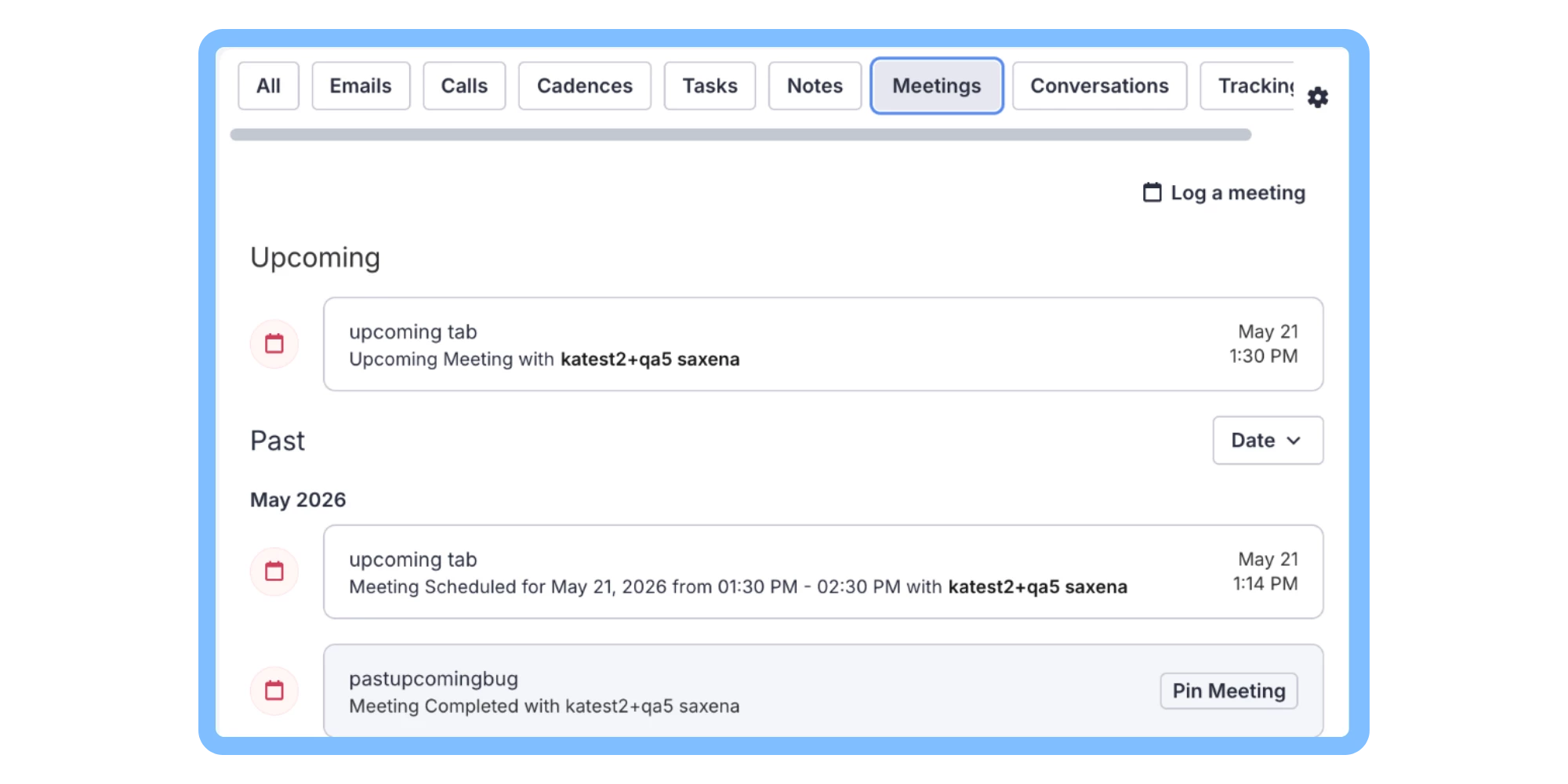
The Activity Feed on Person and Account pages now includes a custom date range filter in the Past sections of the Meetings, Conversations, Notes, and Emails tabs, so you can quickly surface historical activity by the date it actually occurred. A new Upcoming section has also been added to the top of the Meetings tab, giving you a dedicated view of all scheduled meetings in one place.
Who: Available to all Salesloft users.
Where: Person and Account Profile pages in Salesloft — Meetings, Conversations, Notes, and Emails tabs within the Activity Feed.
How: Visit and Account or Person Profile page. Apply the custom date range filter inside the Activity feed. To learn more, see View the Person Profile Activity Feed and Account Profile Activity Feed.
Clari
Clari Copilot - AI assisted Scoring
Clari Copilot can now automatically score recorded video calls using your scorecard templates. After analyzing the call transcript, Clari Copilot assigns a numeric score to each question, highlights the relevant moments in the recording, and generates a summary of strengths and areas for improvement. Managers retain full control and can review, edit, and approve every score before reps see any feedback.
Who: Available to users with access to Clari Copilot and Team Calls who manage or coach reps using call scorecards. Requires Advanced AI features to be enabled in Workspace settings.
Where: Clari Copilot — Team Calls. Scorecard configuration is managed in Workspace settings under Scorecards.
How: For help building or configuring scorecard templates, visit the Clari Support Community.
Clari Copilot in Salesloft — Unified Conversation Intelligence
Clari Copilot is now integrated directly into Salesloft, giving revenue teams access to one of the most capable conversation intelligence products in the market without leaving their Salesloft workflow. Users log in once and access Clari Copilot through their existing Salesloft navigation — no separate login, no context switching.
Clari Copilot call data flows natively into the Salesloft platform. Recordings, transcripts, AI summaries, and action items captured in Clari Copilot appear across the Activity Feed, Deal Summary Agent, Meeting Prep and Follow-Up Plays, Research Agents, and Ask Salesloft — the same way Conversations data did, now powered by Clari Copilot's best in class intelligence layer.
Clari Copilot brings capabilities that Conversations did not have, including AI Smart Chapters, Revenue Critical Moments, real-time live Battlecards on every call, active consent controls, voice fingerprinting, secure external call sharing, and a full enterprise admin command center with team adoption reporting and bulk admin actions.
Who: Available to new Salesloft customers and new Clari Copilot implementations. Existing Salesloft Conversations customers will migrate in a subsequent phase. Requires an Advanced or higher Salesloft license tier.
Where: Accessible from the top navigation under Activity once provisioned. Clari Copilot settings are available under Salesloft Settings → Copilot.
How: Administrators provision users for Clari Copilot within Salesloft Settings. A unified Okta SSO setup is required for new implementations so users access both products with a single sign-on. Once provisioned, users do not need to log into Clari Copilot separately.
Platform & Governance
Updated App Navigation and Button Styling
You'll notice a refreshed look across the Salesloft platform. The top navigation bar has been updated to a lighter color scheme, and buttons throughout the app now appear in a light mode style with blue accents. These are visual updates only — no functionality, settings, or workflows have changed.
Who: All Salesloft users.
Where: Across the Salesloft web app — top navigation bar and buttons throughout the platform.