



See what’s new in Salesloft!
Anticipated Release Date: August 11, 2026
In this article, we will highlight Salesloft's newest features and functionality. New features are releasing in the following product areas:
Salesloft - AI, Data, & CRM
Salesloft MCP Server for ChatGPT
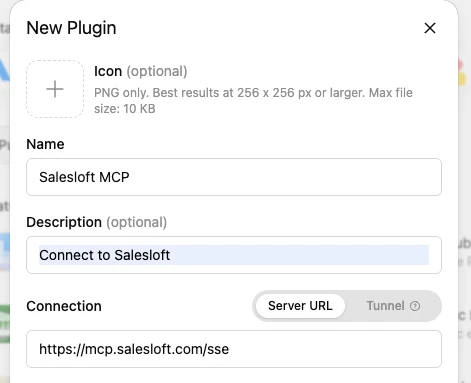
The Salesloft MCP Server is now available as a custom connector for ChatGPT, making live Salesloft data available directly inside ChatGPT without leaving the tool.
Who: Available to Salesloft Agentic customers. Requires a Salesloft Admin to enable the MCP Server toggle, and a ChatGPT Business or Enterprise subscription.
Where: Salesloft Settings > Artificial Intelligence > Salesloft MCP toggle. Connected via ChatGPT Plugins.
How: Admin navigates to Salesloft Settings, locates the Salesloft MCP toggle under Artificial Intelligence, and enables it.
Users open ChatGPT, connect and authenticate with Salesloft credentials. Once connected, ask questions about your accounts, deals, and calls in plain language. To learn more, see the Connect Salesloft MCP Server in ChatGPT article.
Salesloft MCP Server for Claude — Transcript Access Update
The transcript retrieval tool has been removed from the Salesloft MCP Server for Claude. Due to a protocol limitation, the tool was unable to return raw transcript content as intended. Conversation intelligence remains available through the conversation details tool, which returns AI-generated call summaries, extracted fields, and key moments.
Who: Affects Salesloft Agentic customers using the MCP Server for Claude.
Where: Salesloft MCP Server for Claude.
How: No action required. Workflows using conversation summaries and insights through the MCP are unaffected. If you were attempting to retrieve raw transcripts, that capability is not currently supported. To learn about the Salesloft MCP Server for Claude, check out the Connect Salesloft MCP Server in Claude Desktop article.
Salesforce Account Object Linking
Salesloft now automatically links accounts to their corresponding Salesforce CRM records based on domain and website matching, and detects when accounts are merged in Salesforce, HubSpot, or Dynamics to reconcile the corresponding Salesloft records.
Who: Available to Salesloft Admins and account executives using Salesforce, HubSpot, or Dynamics.
Where: Settings > CRM Sync > Sync Management > View Logs — a new "CRM Merge" log type tracks automated reconciliations.
How: No admin setup required. When a new account is created in the CRM with a matching domain or website, Salesloft links the records automatically. When accounts are merged in the CRM, Salesloft detects the event and reconciles the corresponding Salesloft accounts. To learn more, see the CRM Mirroring: Recognize CRM Merges and Deletions article.
Salesforce Custom Object Enhancements
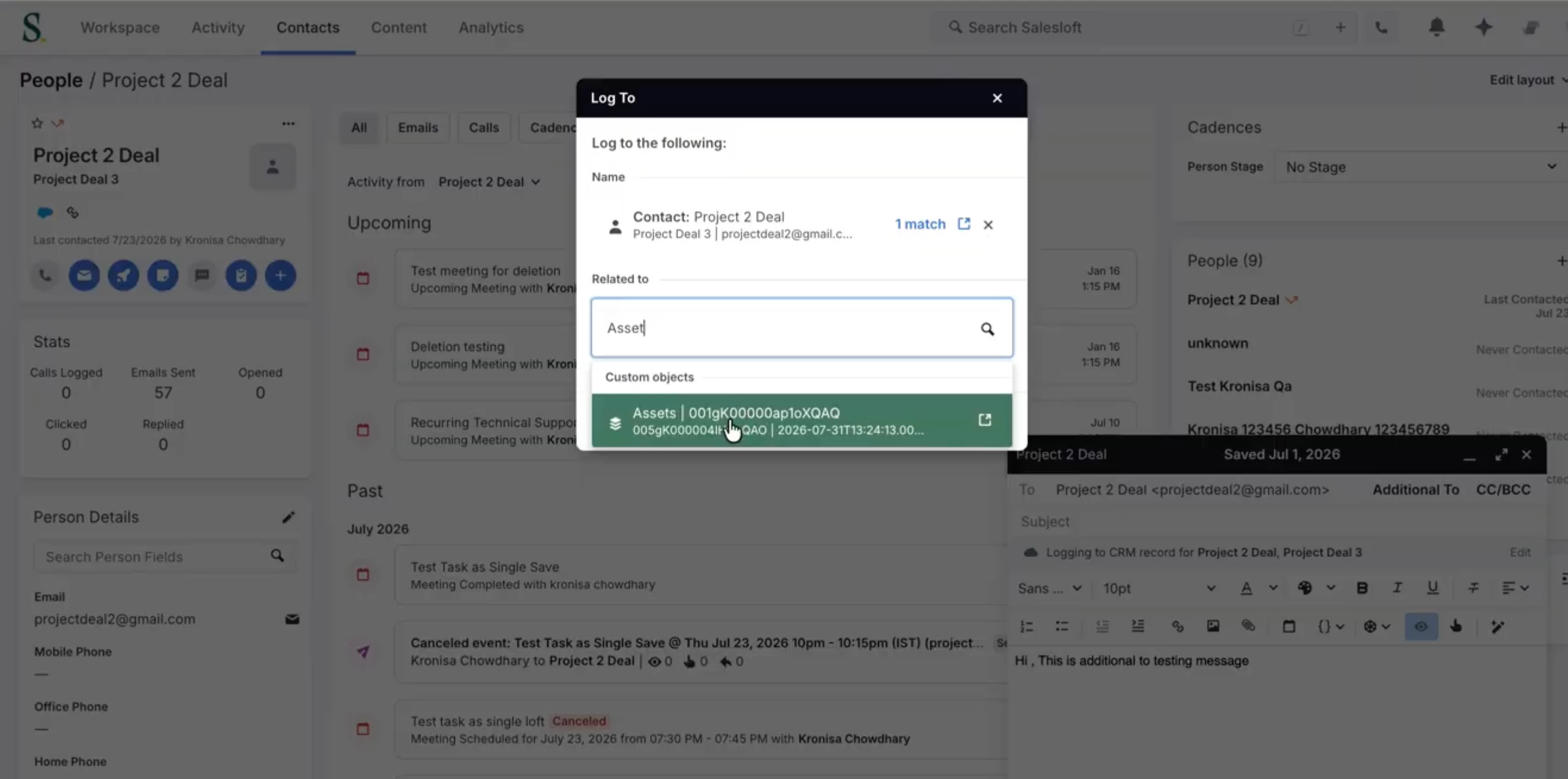
Admins now have a full suite of self-service controls for managing Salesforce custom objects in Salesloft including field mapping, activity logging, group-based visibility, and a 10-object cap.
Who: Available to Salesloft Admins (configuration) and sales reps (daily logging). Available for Salesforce CRM only. Salesforce Admins may need to enable required Salesforce settings. Visibility is managed at the group level, not per individual user.
Where: Field mapping and activity logging — Settings > Field Configuration > [Custom Object]. Visibility — Settings > Access and Visibility > Custom Object Visibility. Object cap — Settings > Field Configuration.
How: Admins will navigate to the Field Configuration Settings to map fields, configure activity logging, and monitor your object count. CRM record selection must be enabled for Custom Object Activity Logging. To learn more, see the Custom Object Field Configuration article.
Salesloft External Client Application (ECA) —Required Action Now Available
The Salesloft External Client Application (ECA) is now available on the Salesforce AppExchange. This free managed package replaces the legacy Salesforce Connected App and is a required migration for all Salesloft customers on Salesforce by September 2, 2026. Salesforce has deprecated the Connected App standard platform-wide — the ECA keeps your Salesloft-to-Salesforce connection intact with no disruption to activity logging or deal sync.
Who: Required for all Salesforce Admins managing a Salesloft team. All Salesloft users on Salesforce will complete a one-time re-authentication after admin cutover.
Where: Salesforce AppExchange (free install); Salesloft CRM Settings for admin connection and cutover; individual user CRM Settings for personal re-authentication.
How: Admins must complete the steps to migrate their team. Then, users must reconnect to their Salesforce account. For more information, check out the Migrate and Reconnect help articles.
Salesloft - Cadence, Rhythm, & Workflow
Rhythm Bulk Delete Task
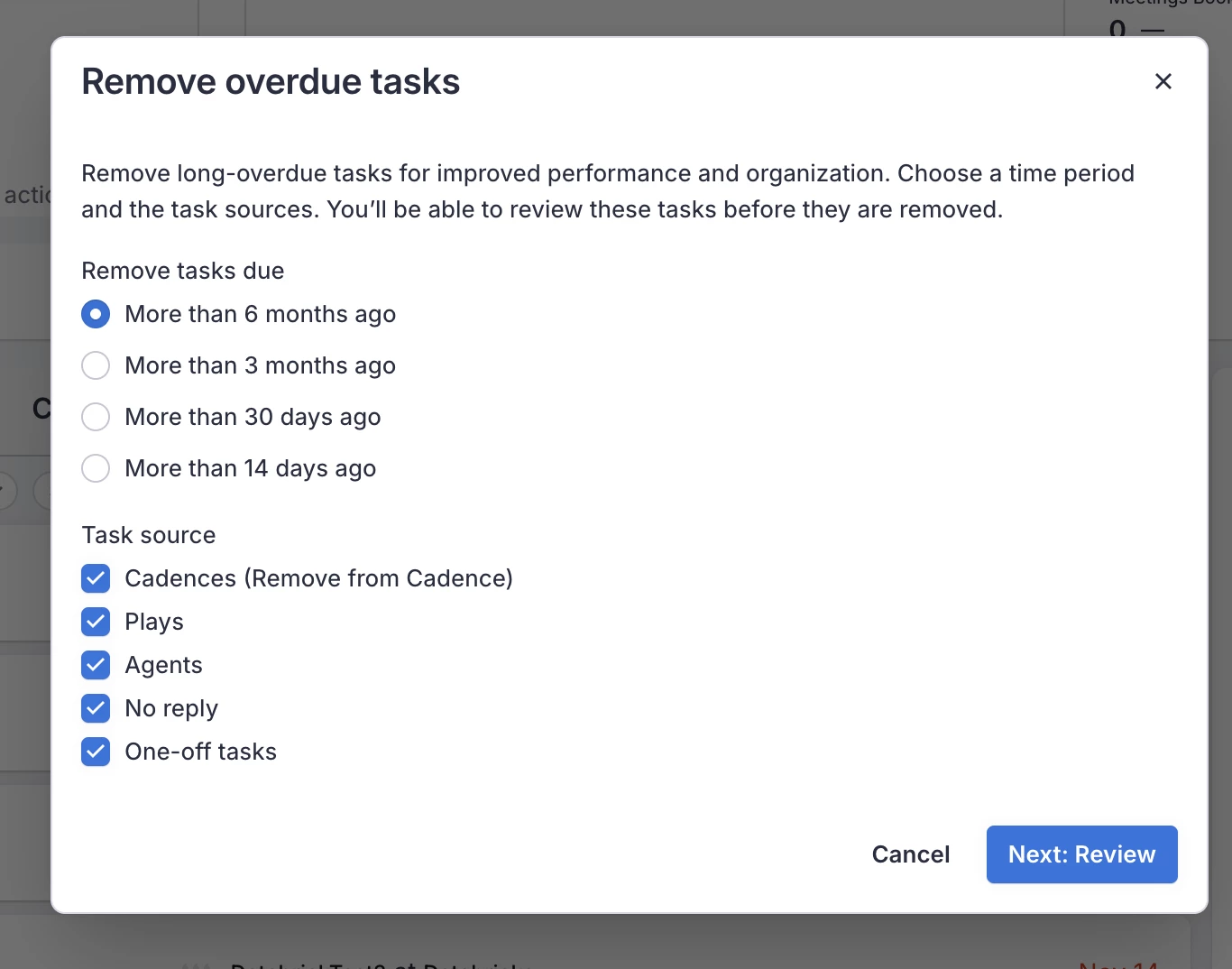
Reps can now clear large backlogs of overdue tasks in Rhythm in a few clicks. Cancellation runs in the background, so reps can keep working while the cleanup runs, and a completion email confirms how many tasks were cancelled when the job finishes.
Who: Available to sales reps with overdue task backlogs in Rhythm.
Where: Rhythm homepage dashboard — new Trash icon entry point.
How: To delete, click the Trash icon on the Rhythm dashboard. In the configuration modal, select which task types to cancel (Cadence steps, one-off tasks, etc.) and set a due-date cutoff. Review the confirmation modal, which shows the total number of tasks to be cancelled and notes that the action is permanent. Confirm to queue the job. A completion email is sent when the job finishes. To learn more, see the Delete Tasks in Salesloft article.
Copilot Meeting Follow-Up Play
Clari Copilot customers who record a call now receive Meeting Follow-Up Play tasks in Rhythm when a Meeting Follow-Up Play is enabled. Play criteria evaluation now uses Copilot recording events, so reps receive post-call follow-up tasks regardless of how the recording was captured.
Who: Available to Salesloft customers who have migrated to Clari Copilot and have the Meeting Follow-Up Play enabled.
Where: Meeting Follow-Up tasks appear inside your Rhythm workflows.
How: If your team does not already have a Meeting Follow-Up Play enabled, create one in your Plays settings first. Once enabled, no additional setup is required — when a call is recorded via Copilot, the Plays engine detects the recording-complete event, evaluates the criteria, and creates the follow-up task in Rhythm automatically. To learn more, see the Meeting Follow-up Play article.
Inline AI Email Revision
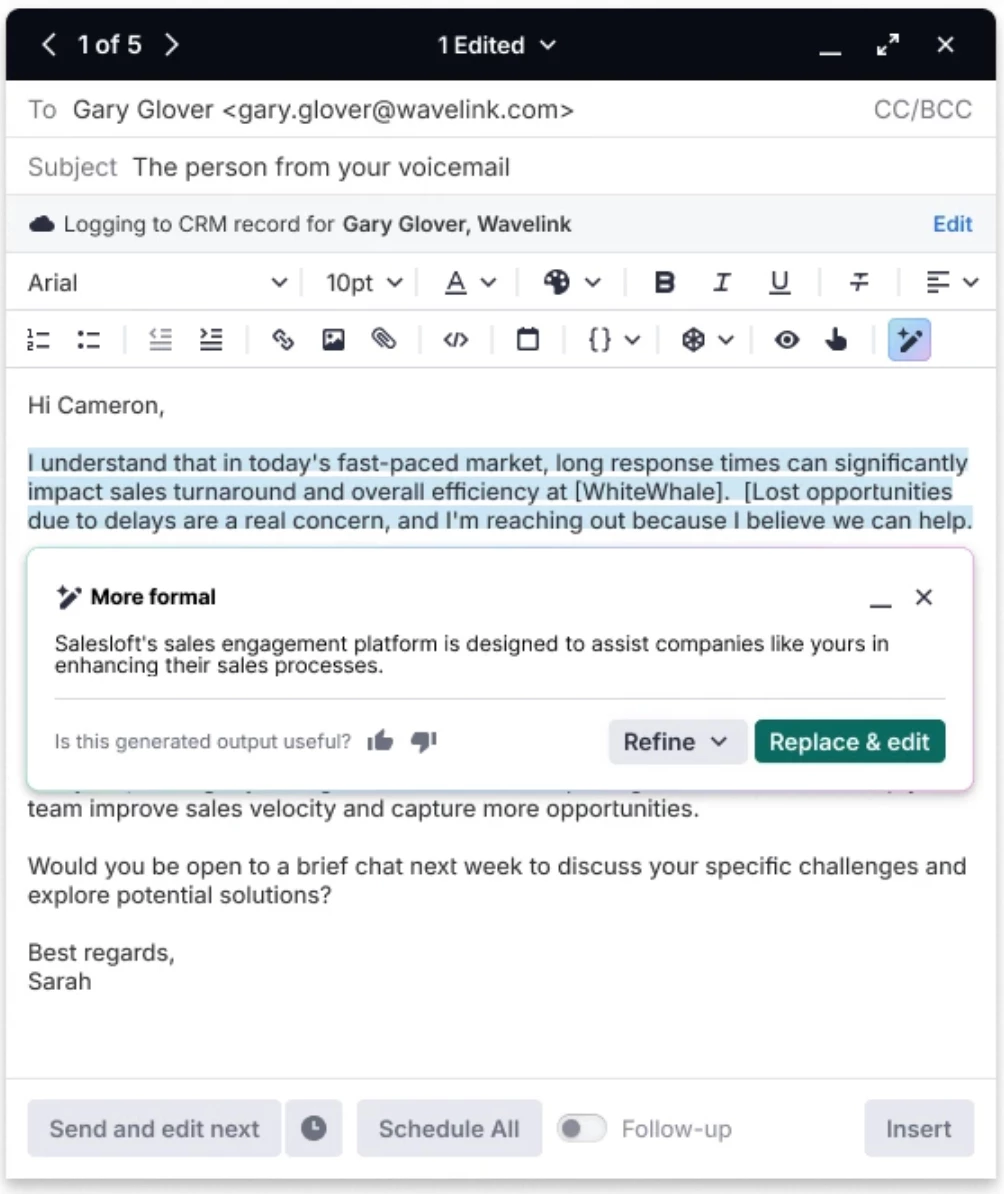
Reps can now highlight any word, phrase, or sentence in the email composer, choose a preset action or type a custom instruction, and receive a revised replacement in place without regenerating the entire email. Merge tokens and inline links within the selection are preserved automatically.
Who: Available to all Salesloft users with AI Email Assistant access. The inline toolbar appears only on selections within the email body; the subject line, signature block, and quoted thread content are excluded.
Where: The floating AI toolbar appears on text selection inside Email compose windows.
How: Highlight any text in the email body. Select a preset action (such as Shorten, Lengthen, or Improve phrasing) from the floating toolbar, or type a custom instruction of up to 200 characters. The selected text is replaced in place. To learn more, see the Refine Emails Using the AI Assistant article.
Copilot
Ask AI Multi-Call
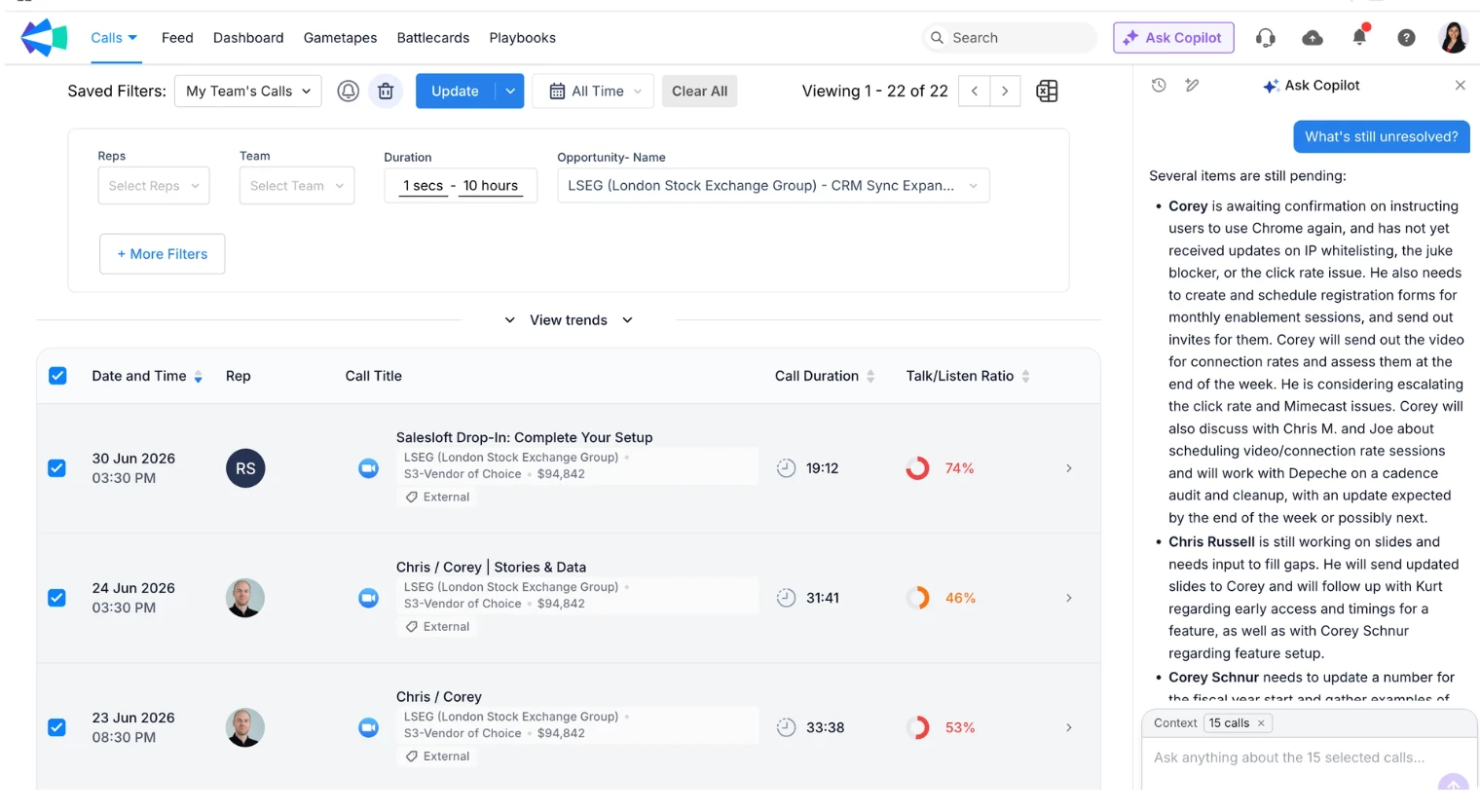
Ask Copilot now works across up to 15 calls in a single chat. Select the calls you want to analyze, ask one question, and get a single synthesized answer with call-level citations.
Who: Available to Clari Copilot users. No user configuration required. Requires calls recorded on or after January 1, 2026, and transcribed recordings in the Copilot library. Users must have view permissions on every call they select.
Where: Clari Copilot — Calls page, Feed, or single call view. The Ask Copilot button appears in the top-right of the page.
How: Go to the Copilot Calls page or Feed. Check the boxes next to up to 15 calls, then click Ask Copilot. Choose a suggested prompt or type your own question. The response streams in with a "Summarized from N transcripts" section listing source calls. Click any source to jump to that call. Ask follow-up questions in the same chat; every follow-up is grounded in the same set of calls. To learn more, see the Ask Copilot about Multiple Calls article.
AI Themes
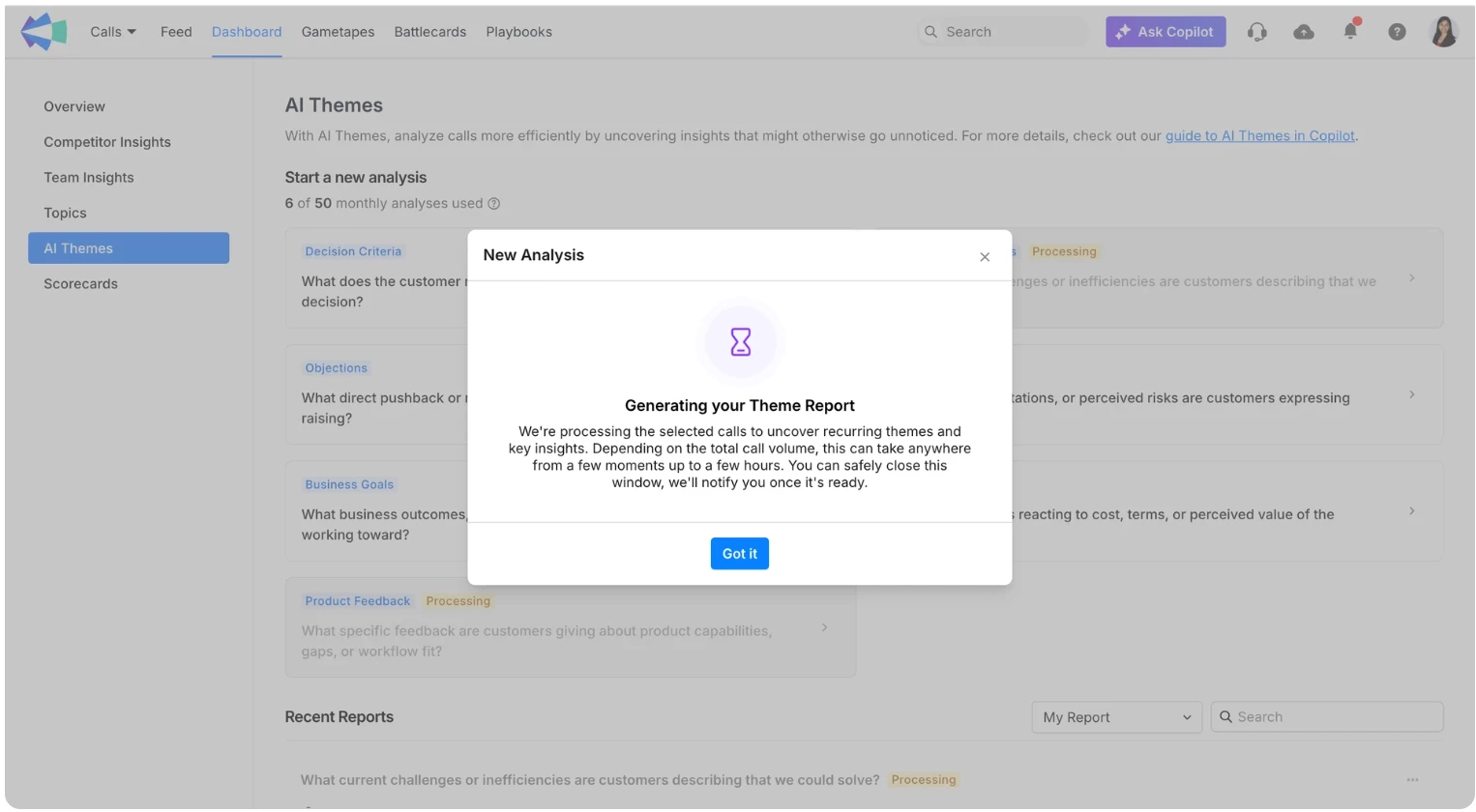
AI Themes analyzes up to 1,000 calls in a single run and returns a structured, cited report of the themes and representative moments that emerged across them. Choose one of seven preset questions — Decision Criteria, Customer Pain, Objections, Customer Concerns, Business Goals, Pricing Reactions, or Product Feedback — scope the calls with filters, and receive a quote-backed report.
Who: Available to Clari Copilot users. Admins and Managers can generate analyses; all other Copilot users have view-only access and can open reports via shared links. Requires a minimum of 100 calls in the filtered scope; analyses are capped at 1,000 calls per run.
Where: Clari Copilot — Dashboard > AI Themes.
How: Go to Dashboard > AI Themes and click a preset question card to start a new analysis. Refine your filters in Step 1, review the call count and remaining monthly quota in Step 2, then click Run Analysis. You will receive an email when the report is ready, along with a Slack, Teams, or in-product notification if those channels are enabled. On the report page, expand any theme to see focus areas, representative quotes, and a link to view source call mentions. Use Download PDF or Copy Link to share the report.To learn more, see the Copilot AI Themes article.
Copilot Mobile for iOS: In-Person Recording
Field reps can now record in-person meetings directly from the Clari Copilot mobile app on iOS. Recordings are attributed to an account and opportunity after the meeting, then processed through Copilot's standard pipeline: transcription, speaker diarization, and CRM sync.
Who: Available to all Clari Copilot users on iOS — update the app from the App Store to get started.
Where: Clari Copilot mobile app (iOS) — Home screen for scheduled meetings, or start an ad-hoc recording at any time.
How: Tap Record from a scheduled meeting on the Home screen, or start an ad-hoc recording with no meeting attached. Confirm that all participants have consented to being recorded (an audio chime also plays). Once uploaded, recordings are processed and viewable in the Completed tab. To learn more, see the Copilot Mobile In Person Recording article.
Copilot MCP Server for ChatGPT
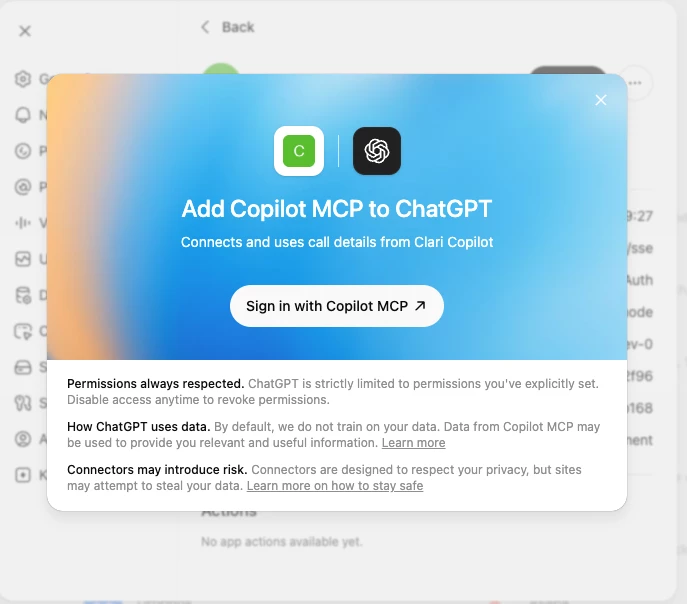
The Copilot MCP Server is now available as a custom connector for ChatGPT, letting revenue teams query Copilot data directly inside ChatGPT. This release supports Copilot tools only.
Who: Available to Clari Copilot customers with a ChatGPT Business or Enterprise plan. Requires the Copilot tools for MCP toggle to be enabled by a Copilot Admin.
Where: Added as a custom plugin in ChatGPT: Admin toggle: Copilot Settings > AI Features > Copilot tools for MCP.
How: An admin enables the MCP toggle in Copilot Settings. Users connect and ask revenue questions in plain language. To learn more, see the Copilot MCP Server for ChatGPT article.
Copilot MCP Server for Claude
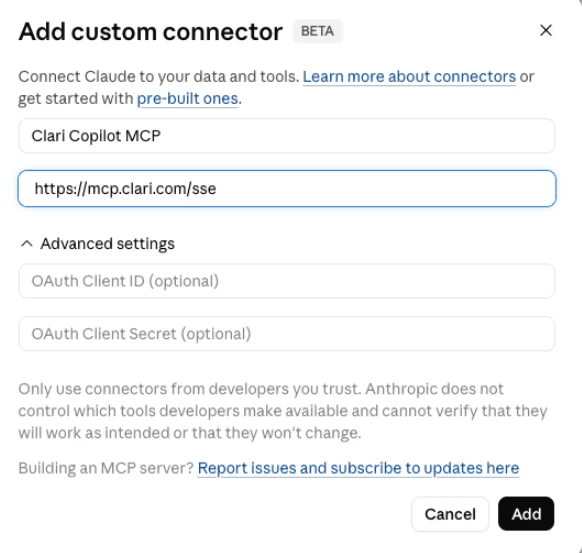
The Copilot MCP Server is available as a custom connector for Claude, giving revenue teams access to Copilot data inside Claude. This release supports Copilot tools only.
Who: Available to Clari Copilot customers with a Claude subscription. Requires the Copilot tools for MCP toggle to be enabled by a Copilot Admin.
Where: Added as a custom connector in Claude. To locate the admin toggle: Copilot Settings > AI Features > Copilot tools for MCP.
How: Admin enables the MCP toggle in Copilot Settings. In Claude, add a custom connector. Start a new chat and confirm the Clari tools appear in the connector list. Ask revenue questions in plain language to get started. To learn more, see the Copilot MCP Server for Claude article.
Clari
Updated Activity Blocklisting Behavior for UAP Customers
The Unified Ingestion Service (UIS) now evaluates all participants in an activity against configured blocklists. If any participant matches a blocked domain or email address, the entire activity is blocked from ingestion. Previously, filtering focused primarily on the meeting organizer, meaning a blocked attendee who was not the organizer would not always prevent the activity from being ingested.
Who: Affects all Clari customers using the Unified Ingestion Service (UAP customers).
Where: Clari Unified Ingestion Service — backend enforcement. No UI change.
How: No setup required. This is a forward-looking behavioral change that takes effect automatically. To learn more, see the Clari Unified Activity Pipeline article.
Clari Mobile Authentication
As part of ongoing Salesforce security compliance improvements, Clari Mobile has updated how it connects to your Salesforce account. You may need to reconnect to Salesloft if prompted.
- iOS: Make sure you're on the latest version of the Clari Mobile app. Once updated, tap the Connect in browser button — this will open Clari in your browser, prompt you to connect Salesforce, and then return you to the app automatically.
- Android: Open app.clari.com in your browser, connect to Salesforce, then return to the Clari Mobile app.
Groove
Groove Managed Package Update (v9.223)
A new Groove managed package (version 9.223) has been released, including the latest Salesforce security requirements and bug fixes. Teams that do not upgrade may lose access to Salesforce from Groove.
Who: Affects all Groove users. Salesforce Admin action required.
Where: Groove Salesforce Managed Package. Install package from Salesforce.
How: As a Salesforce Admin, update the Groove Managed Package to version 9.223.